How to Fine-Tune Gemma 4 Locally

Google released Gemma 4.

Four model sizes: E2B, E4B, 26B-A4B (MoE), and 31B. All Apache 2.0 licensed. All supporting multimodal input (text, images, audio).
The benchmark gains are significant. AIME 2026 math jumps from 20.8% to 89.2%. LiveCodeBench coding from 29.1% to 80.0%.
You can now fine-tune all four variants locally using @UnslothAI.
This guide walks through the complete setup process.
The Models
Free Google Colab notebooks available for E2B and E4B across text, vision, and audio tasks.
Why Unsloth
Unsloth trains Gemma 4 models 1.5x faster with 60% less VRAM compared to standard training.
For developers without expensive hardware, this is the difference between fine-tuning being possible or not.
E2B LoRA works on 8-10GB VRAM. E4B LoRA requires 17GB. The 31B with QLoRA works on 22GB.
Unsloth Studio handles the entire workflow through a visual interface. No Python code required.
Setup
Step 1: Install Unsloth Studio
macOS/Linux/WSL:
curl -fsSL https://unsloth.ai/install.sh | shWindows PowerShell:
irm https://unsloth.ai/install.ps1 | iexInstallation takes 1-2 minutes.
Step 2: Launch Unsloth
unsloth studio -H 0.0.0.0 -p 8888This starts the local web interface. Open http://localhost:8888 in your browser.
On first launch, you'll create a password to secure your account. Then you'll see an onboarding wizard to choose a model, dataset, and basic settings. You can skip it anytime.

Step 3: Configure your model and dataset
Search for Gemma 4 in the model search bar. Select your variant (E2B, E4B, 26B-A4B, or 31B).
Choose LoRA 16-bit as your training method for E4B. Use QLoRA for larger models on limited VRAM.
Select your dataset from HuggingFace or upload your own.
Adjust context length, learning rate, and hyperparameters as needed.
Step 4: Prepare your dataset
Four formatting rules specific to Gemma 4:
Example format for vision:
{
  "messages": [
    {
      "role": "user",
      "content": [
        {"type": "image", "image": "/path/to/image"},
        {"type": "text", "text": "Describe this image"}
      ]
    },
    {
      "role": "assistant",
      "content": [
        {"type": "text", "text": "This image shows..."}
      ]
    }
  ]
}
Step 5: Train
Click Start Training.
Training loss and gradient norm update in real time. A healthy run shows steadily decreasing loss.
E2B and E4B multimodal models typically show loss of 13-15. This is normal. Text-only Gemma 26B and 31B have lower loss at 1-3.
The model saves automatically when training completes.

Step 6: Export your model
Once training is complete, export to three formats:
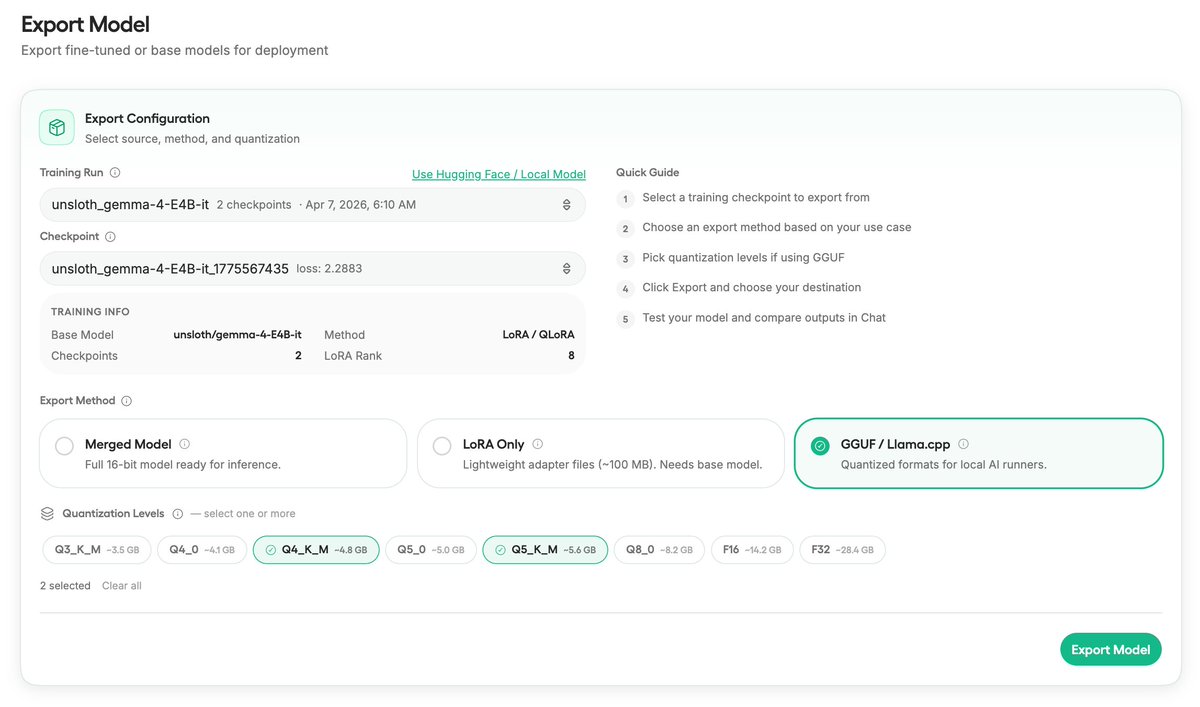
Click Compare Mode to compare your fine-tuned model against the original.

Tips for Better Results
What This Enables
Gemma 4 is powerful for multilingual fine-tuning. It supports 140 languages.
The E2B and E4B variants enable on-device deployment. Fine-tune once, run locally on phones and laptops.
The 31B variant enables highest-quality specialized models when you need performance over efficiency.
Your fine-tuned model is ready for deployment. The tooling is ready. The only question is what to fine-tune it for.
Code and notebooks: https://unsloth.ai/docs/models/gemma-4/train
If you found it useful, reshare it with your network
Follow me → @Sumanth_077 for more insights and tutorials on AI Engineering!
