25 Hidden Claude Features Most People Completely Miss

Most people use Claude like a chat box and miss the features that actually make it a working system.

Save this so that you can use it later or share it with someone who really needs this!
So far after daily testing I have realised that, the biggest gains come from a small set of underused settings, workspaces, and agent tools.
This article covers 25 features most users never turn on or never use correctly.

Why these features stay hidden
They sit in Settings, Projects, Capabilities, Claude Code, and Cowork not in the main chat window.
Default Claude is already good, so people never look further.
The real upgrade is persistence: memory, instructions, files, skills, and reusable workflows.
A. Settings most people never open (1–6)
These live in Settings → Capabilities, Settings → Memory, and the profile/preferences area. Most users never touch them.
1. Custom / profile instructions — standing rules that apply across chats
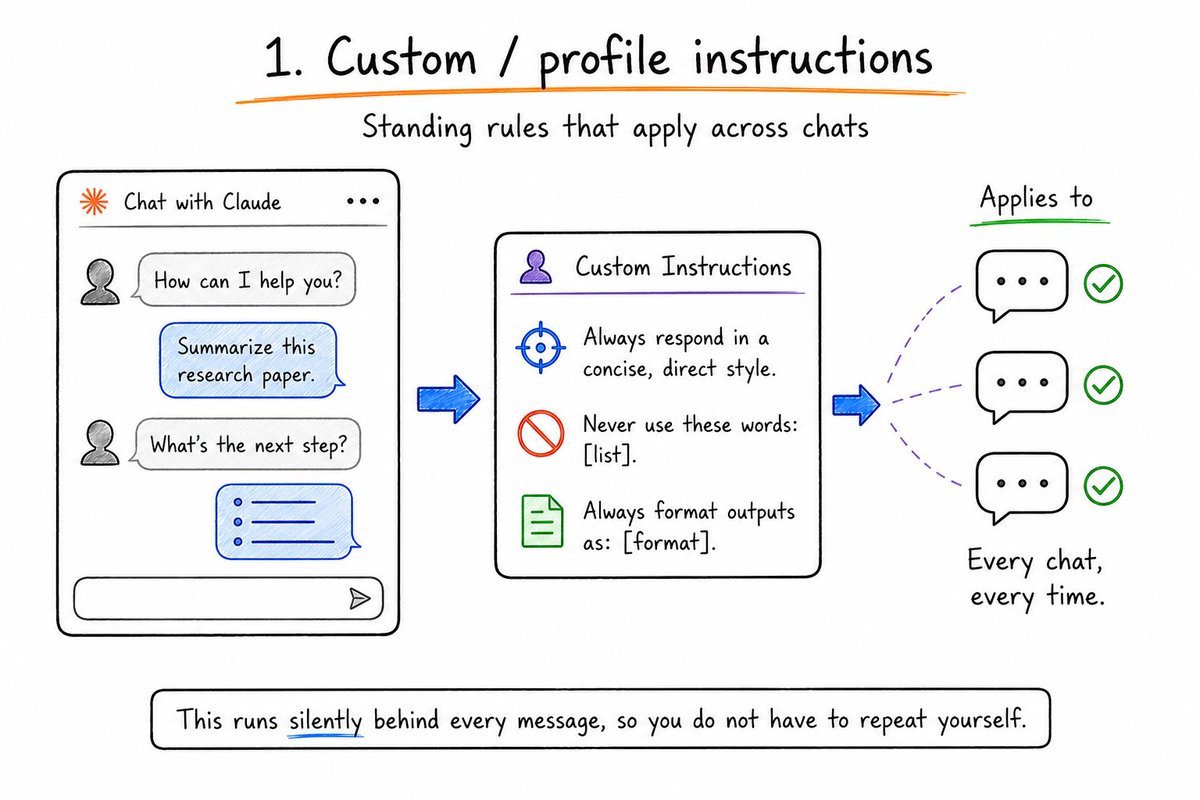
Custom instructions act as a global system prompt for every conversation.
You can write things like:
“Always respond in a concise, direct style.”
“Never use these words: [list].”
“Always format outputs as: [format].”
This runs silently behind every message, so you do not have to repeat yourself.
2. Memory from chat history — Claude remembers preferences and facts across sessions
When enabled, Claude learns your preferences, your projects, and your communication style over time.
You can view and edit what Claude remembers in Settings → Memory. Curate it like you would curate an employee’s onboarding notes.
3. Search and reference past chats — pull context from earlier conversations

Claude can search your conversation history and pull relevant context from earlier sessions.
Instead of re-explaining everything, you can say: “Use what we discussed last week about [topic]” and Claude will retrieve it.
4. Code execution and file creation — required for Artifacts, Skills, and file work
In Settings → Capabilities, you must enable code execution and file creation for many advanced features.
Without this, Artifacts, Skills, and file-based workflows will not work. This is the single most common “why is this broken?” issue.
5. Effort control — choose how hard Claude thinks on a task (low to max / extra)

Effort control lets you choose how much reasoning Claude applies:
This is how you match model effort to task difficulty instead of always paying for maximum thinking.
6. Styles — reusable tone and format presets instead of rewriting style every time
Claude has preset communication styles you can switch between: Concise, Explanatory, Formal, and more. You can also create custom styles.
Build one that matches your voice and every conversation starts with the right tone automatically.
B. Projects: the most underused workspace (7–11)
Projects are persistent workspaces with their own instructions and files. Every conversation inside a project automatically inherits the context.
7. Projects as persistent workspaces — stop re-pasting the same brief

Instead of pasting your context file every time, create a project and set the context once.
Every chat inside that project starts with the same background, so you do not lose continuity.
8. Project instructions — a system prompt for one type of work only
In Project settings, you can write custom instructions that act as a system prompt for that project only.
Example:
“You are my content strategist. Always respond in my brand voice. Never use these words: [list]. Always format outputs as: [format].”
9. Project knowledge files — docs, notes, and references Claude uses automatically

Inside any project, upload reference documents. Claude reads them at the start of every conversation.
Your brand guidelines. Your product docs. Your writing samples. Always loaded. Never forgotten.
10. RAG mode in large projects — expands capacity when files get big
In large projects with many files, Claude can operate in a RAG-like mode, retrieving relevant sections instead of trying to hold everything in context at once.
This keeps performance stable even as your project grows.
11. Separate project memory — keep client/work context isolated from personal chats
##
Each project has its own memory layer, separate from your global memory and personal chats.
This keeps client/work context isolated and prevents cross-contamination between different types of work.
C. Output tools people skip (12–15)
These are the visible features that turn chat into real deliverables.
12. Artifacts — live documents, apps, dashboards, and pages beside the chat
When Claude produces code, documents, or visual outputs, they render in a separate panel called Artifacts.
You can iterate on artifacts independently of the conversation. Edit, refine, and download without losing your chat context.
13. Versioned artifacts — update in place and restore earlier versions

Artifacts support versioning. You can update them in place and restore earlier versions if needed.
This turns one-off outputs into living documents you can evolve over time.
14. Shareable artifact pages — turn a session into something others can open
You can generate shareable links for artifacts so others can open and view them.
This turns a private session into something you can send to teammates, clients, or collaborators.
15. Interactive / structured replies — use Claude’s option-based flow instead of only free text

Claude can present structured, option-based flows (multiple-choice, step-by-step wizards) instead of only free text.
This makes complex workflows easier to navigate and reduces ambiguity.
D. Skills, Cowork & automation (16–20)
This is where Claude moves from chat to workflows and agents.
16. Skills — reusable playbooks Claude can load when relevant
Skills are reusable playbooks stored as markdown files (e.g., .claude/skills/<name>/SKILL.md).
They define workflows, checklists, and patterns that Claude can load automatically when relevant.
17. Skill sharing — reuse the same workflows across chats and teammates

Skills can be shared across chats and, on team plans, across teammates.
Everyone gets the same context, the same standards, and the same capabilities. Consistency across the entire organization.
18. Cowork scheduled / remote sessions — work continues after you close the laptop
Claude Cowork can run scheduled or remote sessions. Your computer needs to be on and Claude Desktop open, but the tasks run unattended.
If your laptop sleeps during a run, it auto-runs when you reopen.
19. Parallel sub-agents — split large jobs across multiple agents

When Cowork gets a large task, it can spin up multiple sub-agents that work simultaneously.
Tell it to process 20 files and it divides them across 4–5 sub-agents running in parallel. What takes 30 minutes sequentially finishes in 6.
20. Connectors — let Claude work with files, email, calendar, and other tools
Connectors let Claude access your files, email, calendar, Drive, and other tools.
You can chain connectors: “Read my Gmail, check my calendar, pull relevant files from Drive, and create a meeting prep document.” Four connectors, one instruction, zero tab switching.
E. Claude Code power features (21–25)
Claude Code is the terminal-based coding agent. These are the features that make it reliable instead of chaotic.
21. CLAUDE.md hierarchy — user, project, and folder-level rules stacked together

Most users have one CLAUDE.md. Power users have three levels:
They cascade and the most specific level wins.
22. /init, /plan, /compact, /review — the slash commands that prevent messy sessions
Key slash commands:
These prevent messy, uncontrolled sessions.bruniaux+2
23. Plan mode before coding — Claude outlines the approach and waits for approval
Plan Mode enables Claude to create structured plans before implementation.
You can activate it with:
Claude will:
Essential for any task touching multiple files. The difference between clean execution and debugging chaos.
24. Hooks and permission rules — block dangerous actions and enforce your process
Hooks and permission rules let you:
This is how you make Claude Code safe for production work.
25. Reusable workflows / saved agent teams — turn a good run into a repeatable system
You can save successful setups as reusable workflows or agent teams.
Once a workflow works, you can rerun it with different inputs instead of rebuilding from scratch every time.
The features that give the fastest payoff
If you only enable a few things first, start with these:
What most people get wrong
Common mistakes:
No projects, no separation of concerns.
Wasting tokens and time instead of using Projects and Memory.
Ignoring Artifacts, Skills, and file-based workflows.
Wondering why Artifacts, Skills, or code execution do not work.
Letting Claude run wild instead of designing safe, repeatable systems.
Simple setup order
A practical sequence to get value fast:
Settings → Memory and Settings → Capabilities.
Global or per-project, depending on your needs.
One for personal, one for client/work, one for experiments.
E.g., content review, code review, meeting prep.
Use Plan Mode for any non-trivial change.
Key takeaway
Claude’s hidden advantage is not a secret prompt.
It is persistence: instructions, files, memory, skills, and reusable workflows. Turn these 25 features on, and Claude stops resetting every conversation and starts compounding with your work.
Hope you liked the article.
Building better AI workflows for creators like you.
❣️I’m Kanika (@KanikaBK) — follow for more practical tests and setups.
Also subscribe to my newsletter: https://passiveincomehabit.beehiiv.com/