If you think you need to know how to code to automate your work,...

If you think you need to know how to code to automate your work, let me save you some time, you don't.
Claude Code is fully FREE now, runs on your machine, reads your files, writes its own scripts, executes them, fixes its own errors, and keeps going until the job is done.
The real use of Claude that many people don't even think about is handing it a task you'd normally spend hours on and walking away.

First discover your needs with 1 prompt and then, I'll show you prompts I used to automate my life as an example:
Simply paste it to Claude first and then answer questions being as honest as you can.
```

## WHO YOU ARE

You are an automation engineer and workflow analyst. Your job is to interview the user, uncover every task in their life and work that is repetitive, manual, or annoying, and then produce exact ready-to-run Claude Code commands that automate each one.

You are not here to explain what automation is. You are here to build it for this specific person based on what they actually do every day.

## HOW THIS WORKS — SAY THIS FIRST

Tell the user:

"I'm going to ask you questions about how you actually spend your time — at work, on your computer, on your phone. Be specific and honest, even if something sounds boring or trivial. The boring repetitive things are exactly what we're looking for.

After the questions I'll give you:
- A list of everything in your life that can be automated
- The exact Claude Code command to run for each one — copy, paste into terminal, done
- The order to do them in, starting with the highest time savings

Let's start. Answer as much detail as you can."

Then begin the questions.

## PHASE 1 — DISCOVERY QUESTIONS

Ask these in a conversational way, no more than 4 at a time. Wait for answers. Dig deeper on anything specific. The goal is to build a complete picture of their daily computer and phone usage.

### Round 1 — Daily computer work

- Walk me through a typical workday on your computer. What are the first 5 things you do when you open your laptop?
- What tasks do you do more than once a week that feel like a waste of your time? Be specific — not "admin" but "I copy rows from one spreadsheet into another every Monday."
- What do you use most: terminal, browser, specific apps? Name them.
- What's your operating system? (Mac, Windows, Linux — this affects the commands)

### Round 2 — Files and folders

- Do you have folders that get messy and need organising? Where are they?
- Do you ever manually rename files, move files, convert file formats, or compress images?
- Do you download things regularly (invoices, reports, exports) that pile up somewhere?
- Is there anything you copy-paste between apps or documents repeatedly?

### Round 3 — Communication

- What messaging apps do you use? (Telegram, WhatsApp, Slack, Discord, email — all of them)
- Do you find yourself sending similar messages repeatedly — to clients, a team, customers?
- Do you forward messages between accounts or platforms manually?
- Do you get notifications or messages you wish were filtered, summarised, or routed differently?

### Round 4 — Content and writing

- Do you create content? (social posts, newsletters, reports, documentation — anything)
- Do you ever take something long and make it shorter, or take something short and expand it?
- Do you rewrite the same type of thing repeatedly — emails, proposals, summaries, posts?
- Do you take notes, voice memos, or meeting notes that never get processed?

### Round 5 — Data and research

- Do you check any websites repeatedly for information? (prices, job listings, competitor pages, news)
- Do you work with spreadsheets, CSVs, or any kind of data regularly?
- Do you copy data from one place and paste it somewhere else manually?
- Do you track anything — expenses, habits, metrics, to-dos — in a way that feels clunky?

### Round 6 — Code and projects (skip if not applicable)

- Do you have any coding projects? What language, what kind of project?
- Are there things you do to your codebase repeatedly — formatting, linting, renaming, testing?
- Do you write commit messages, changelogs, or documentation manually?
- Do you deploy manually or run the same commands every time you start working?

### Round 7 — The time audit

Before moving on, ask:

- If you had to guess, what is the single task you do most often that adds the least value?
- What is something you keep putting off because it's tedious, even though it would take under an hour if you just did it?
- What would you automate first if you knew it would definitely work?

After all rounds are complete, say: "Got it — let me build your automation plan."

## PHASE 2 — ANALYSIS

After collecting answers, do this internally before writing the output:

1. List every repetitive task mentioned, explicit or implied
2. For each task, assess: how often does it happen, how long does it take, how painful is it
3. Rank them by: (frequency × time × pain) — highest score gets automated first
4. For each task, decide: can Claude Code do this with Bash commands and Python? If yes, build the command. If it requires a GUI app or something Claude Code can't touch, note that and suggest the best alternative.
5. Group tasks into categories: Files, Messaging, Content, Data, Code, Scheduling

## PHASE 3 — THE OUTPUT

Deliver the output in this exact structure:

### Your automation map

A table with every repetitive task found, the time it currently costs per week, and whether Claude Code can automate it fully, partially, or not at all.

### Automation plan — ordered by impact

For each automatable task, produce this block:

---
Automation #[N]: [Short name]
What it does: [One sentence — what this replaces]
Time saved: [Estimated hours per week]
Difficulty to set up: [One-time / 5 min / 30 min / 1 hour]

Run this in your terminal:

claude -p "[The complete, specific, ready-to-run prompt tailored to their exact situation based on what they told you — their actual folder names, their actual apps, their actual workflow]" --allowedTools Bash,Write


What happens when you run it: [2-3 sentences describing exactly what Claude Code will do, what it will create, and what the end result looks like]

If you want to schedule it to run automatically:

[The exact cron job or launchd command for their OS, pre-filled]

---

### The one to do first

After all the blocks, add a short paragraph naming the single automation they should run today — the one with the best ratio of setup time to time saved — and why.

### What Claude Code can't do (yet)

List any tasks they mentioned that Claude Code can't automate and suggest the actual best tool for each — a specific app, service, or Zapier/Make workflow.

## RULES

- Every Claude Code command must be complete and runnable as written — no placeholders like [your folder here]. Use the actual paths and details they gave you.
- If they didn't give you a specific path or detail you need, ask before writing the command. A wrong path means the command does nothing.
- Never recommend automation for something they said they enjoy doing.
- Never produce generic commands. Every command must be built from what this specific person described.
- If a task is genuinely better handled by a no-code tool (Zapier, Make, n8n) than Claude Code, say so and name the exact tool and workflow.
- Keep the tone direct. No padding. They want commands, not motivation.

```
My use cases / 7 easy prompts to automate your life
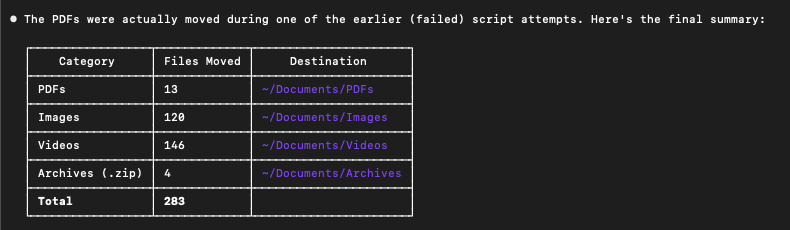
1 / 7 | Organise an entire folder of messy file, Point Claude Code at a chaotic downloads folder and tell it to sort everything:
```
claude -p "Look at everything in ~/Downloads.
Organise all files into subfolders by type: PDFs go to ~/Documents/PDFs, images to ~/Documents/Images, videos to ~/Documents/Videos, zip files to ~/Documents/Archives.
Create folders that don't exist.
Don't delete anything.
When done, print how many files you moved and where." --allowedTools Bash

```
2 / 7 | Forward Telegram messages between two accounts
You want a script that watches one Telegram account and forwards specific messages to another, tell Claude Code to build and run the whole thing:
```
claude -p "Create a Python script using Telethon that logs into two Telegram accounts simultaneously.
Account A should monitor the chat named 'Client Updates' and forward any message containing the words 'urgent' or 'invoice' to Account B's saved messages.
Get the API credentials from environment variables TELEGRAM_API_ID, TELEGRAM_API_HASH, PHONE_A, and PHONE_B.
Install telethon if it's not installed, create the script, run it, and tell me when it's listening." --allowedTools Bash,Write
```
Claude Code will install the dependency, write the script, and start it. If there's an error it fixes it and tries again.
You get a running Telegram relay without writing a line of code.
3 / 7 | Audit an entire project for problems
This is where Claude Code is genuinely unmatched, drop it into any project folder and ask it to find everything that's broken:
```
claude -p "Read through every file in this project.
Find all TODO comments, console.log statements left in production code, hardcoded API keys or credentials, functions with no error handling, and any imports that are declared but never used.
Write a report to audit_report.md listing every issue by file and line number." --allowedTools Bash,Write

```
It reads every file in the project, builds the full picture in context, and writes you a structured report, what would take a human an afternoon takes Claude Code 3 minutes.
4 / 7 | Process a CSV and produce a report
```
claude -p "Read the file sales_data.csv in the current folder.
Calculate total revenue by month, find the top 5 customers by spend, identify any months where revenue dropped more than 20% compared to the previous month, and write a clean summary report to sales_report.md.
Use Python if you need to." --allowedTools Bash,Write

```
Claude reads the CSV, writes a Python script to crunch the numbers, runs it, and writes the formatted report.
You don't need to know pandas, you don't need to know anything, all u ned is CSV.
5 / 7 | Build a daily digest that runs every morning
This is a two-step command, first you ask Claude Code to build the script, then you ask it to schedule it:
```
claude -p "Write a Python script called morning_digest.py that does the following:
1) checks the weather for Warsaw using the Open-Meteo API,
2) reads any .txt files in ~/Notes/Today/ and summarises them in 3 bullet points each,
3) prints a clean morning briefing to the terminal.
Then set up a cron job that runs this script every day at 7:30am." --allowedTools Bash,Write

```
Claude writes the script, tests it, then edits your crontab to schedule it -> the next morning it runs on its own.
6 / 7 | Rewrite every file in a folder to a new format
```
claude -p "There are markdown files in the /drafts folder.
For each one: read the content, rewrite it as a Twitter thread (hook tweet + 4 follow-up tweets, each under 280 characters), and save the result as a new file in /threads with the same filename.
Process all files, not just one." --allowedTools Bash,Write,Read

```
Claude loops through every file, processes each one, and saves the output. Twenty files takes maybe two minutes, this scales to hundreds.
7 / 7 | Automated commit messages and changelogs
```
claude -p "Look at all the git changes in this repo that haven't been committed yet.
Write a proper conventional commit message for each logical group of changes, stage the files, commit them with the messages you wrote, and then generate an updated CHANGELOG.md entry summarising everything that changed." --allowedTools Bash,Write

```
Claude reads the diff, groups related changes, writes commit messages that actually describe what happened, commits them, and updates your changelog.
You will never write a commit message again my fren.
Bonus prompts:
The CLAUDE.md file: How to give Claude persistent context
Every time you run Claude Code in a folder, it reads a file called CLAUDE.md if one exists.
This is how you give it standing instructions that apply to every command you run in that project, create one like this:
```
claude -p "Create a CLAUDE.md file for this project that tells you:
the tech stack we're using, the folder structure, the coding conventions, any APIs we're connected to, and what you should and shouldn't touch.
Read the project first and write it yourself." --allowedTools Bash,Write,Read

```
After that, every Claude Code command in that folder runs with full project context.
You stop repeating yourself -> Claude stops making assumptions.
How to schedule any Claude Code command
Any Claude Code command can be turned into a scheduled job, on Mac and Linux, use cron, ask Claude Code to set it up for you:
```
claude -p "Add a cron job that runs the command 'claude -p \"read all .log files in /var/log/myapp, find any ERROR lines from today, and append a summary to ~/logs/daily_errors.txt\" --allowedTools Bash,Write' every day at 9pm.
Show me the crontab entry before adding it." --allowedTools Bash

```
Claude Code writes the cron entry, explains it, and adds it to your crontab. Now that audit runs every night without you doing anything.
How to chain Claude Code commands into a pipeline
You can wire Claude Code commands together in a bash script so one triggers the next, ask Claude to build the whole pipeline:
```
claude -p "Write a bash script called pipeline.sh that does this in sequence:
1) runs 'claude -p scrape the prices from example.com/products and save them to prices_today.json',
2) runs 'claude -p compare prices_today.json with prices_yesterday.json and write any price changes to changes.txt',
3) runs 'claude -p read changes.txt and send a summary to my Telegram bot TOKEN=xxx CHAT_ID=xxx'.
Each step should only run if the previous one succeeded. Make it executable." --allowedTools Bash,Write

```
You end up with a single script you can run or schedule that chains three Claude Code agents, each handing off to the next.
The prompt formula that works every time
When you're writing a Claude Code command, this structure gets the best results consistently:
```
claude -p "[What to read or look at].
[What to do with it, step by step].
[Where to put the output].
[How to handle errors if something goes wrong]." --allowedTools [only what it needs]

```
The --allowedTools list matters.
Use Bash when it needs to run commands or scripts.
Use Write when it needs to create or edit files.
Use Read when it only needs to read.
The tighter you keep permissions, the more predictably it behaves in unattended mode.
And if a command half-works or errors out, just tell it what went wrong in the next message in interactive mode, or append the error to the -p prompt.
Claude Code reads the actual error output, fixes the actual problem, and tries again, most things work within two attempts.