here's how to clone videos w/ OMNI MOTION CONTROL

Omni Flash is one of the craziest "nano banana moment" of AI VIDEO. it's one of the best and cheapest models at editing videos even though most people are still using it like veo 3 which is not the case here.

with my V3 AI UGC ADS system we have pushed omni to its maximum abilities.
i will stop yapping and show you a step by step on how you guys can use Omni Flash to edit and clone videos, replace characters, products etc...
Step 1: go to Google Flow
if you don't know what flow is, its the official google's video platform where you can use the latest models.
we will use the Gemini Omni Flash model from there, it's one of the best and cheapest models in modern models right now.
its like 1$ per 1 min of video
Step 2: download your base video
what i like to do is go on tiktok and download a video i want to clone, it doesnt matter whether its tikktok, reels, yt shorts whatever just download it.
once you download the video, cut it to 10s, and upload it to google flow.
Step 3: ChatGPT image reference method
Next, we're going to find a different character that we're going to be using for our video. We don't want to use a real person for the videos unless you do have rights of that person. We're going to be using my chatgpt image reference method to get a whole new person that's our own unique avatar.
Step 4: Bypass HACK (IMPORTANT)
Now you guys may be wondering how you make a prompt with Gemini Omni.
If you just try to prompt it normally ("replace person in the video attached with this attached in the image"), you're going to get multiple different errors saying unable to edit speech inside of the video.
This is usually where most people give up and say Gemini Omni doesn't work.
Let me show you my workaround to actually bypass these restrictions and be able to prompt for literally anything using the image reference method:
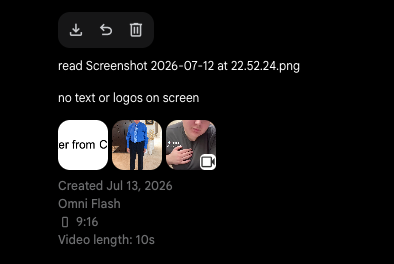
That's all you have to write! it's just going to read the reference image and it's going to understand what to do from there. Your prompt will go through every single time.
If you want to learn the best AI workflows and get paid for your videos, make sure you join the AI UGC community, it will go through a crazy update with the latest modules im using to scale ads on facebook ads. link is in my profile
the result