Claude Can Now Do All of This. Here's What Most Users Missed.


Anthropic ships fast. New models, new tools, new features - the pace hasn't slowed once this year.
Most users don't notice. There's no pop-up when something new lands in your account. No tutorial, no walkthrough. It just appears and blends into the background.
Here are 15 things that appeared this year. What they are, what they do, and how to use each one.
Files and documents
1. Create files directly
Most people ask Claude to produce something - a report, an analysis, a plan - then spend ten minutes copying the output into a Word doc or pasting it into a spreadsheet. That manual step has always been unnecessary. Most users just didn't know it.
Claude now creates Excel spreadsheets, PowerPoint decks, Word documents, and PDFs directly inside the chat. Not a text block you copy somewhere - an actual file you download and open immediately.
Just paste this prompt into Claude
Create this as a [Word document / Excel spreadsheet / PowerPoint / PDF]:

Content: [describe what you need]
Structure: [how you want it organized]
Tone: [formal / casual / technical]
Length: [approximate length or number of slides/sheets]

Deliver it as a downloadable file, fully formatted and ready to use.
2. Claude for Excel
Most users use Claude and Excel separately. They ask Claude to analyze something, get the answer in text, then manually recreate it in a spreadsheet. Two tools, two windows, unnecessary back and forth.
Claude is now available as a native add-in directly inside Excel. It reads your actual data, writes formulas, builds pivot tables, applies conditional formatting - without you leaving the spreadsheet.
Open Excel, install the Claude add-in, and use this to get started:
I have a spreadsheet with the following data: [describe your data/columns]

I need you to:
1. [e.g. write a formula that calculates X]
2. [e.g. build a pivot table showing Y by Z]
3. [e.g. apply conditional formatting to highlight values above X]

Work directly in the sheet. Explain what you did after.
3. Claude for PowerPoint
majority builds presentations manually - slide by slide, formatting each one, adjusting layouts. Or they ask Claude for content, copy the text, then paste it into PowerPoint and start formatting from scratch.
Claude is now available as a native add-in directly inside PowerPoint. It reads your existing slides, rewrites content, builds new ones, adjusts structure and tone - without leaving the presentation.
Open PowerPoint, install the Claude add-in, and use this to get started:
Here's what I'm working on: [describe the presentation - topic, audience, goal]

I need you to:
1. [e.g. rewrite slide 3 to be more concise]
2. [e.g. add a new slide summarizing the key takeaways]
3. [e.g. adjust the tone to be more formal throughout]

Work through the slides and explain what you changed after.
4. Work across Excel and PowerPoint
The analysis lives in Excel. The presentation lives in PowerPoint. Every time the data changes, you rebuild the charts manually and paste the new numbers in - the same transfer, done over and over.
Claude now shares full context between both add-ins. What it knows from your spreadsheet it carries into your slides automatically. One conversation, two applications, no manual transfer
Use this to move data directly from your spreadsheet into a presentation:
I've been working on a spreadsheet with [describe your data and analysis].

Now I need to build a presentation using this data.

Create slides that include:
1. [e.g. a summary of the key numbers]
2. [e.g. a chart showing X trend over time]
3. [e.g. a recommendations slide based on the analysis]

Pull the data directly from what you already know.
Don't ask me to re-explain it.
Visual and creative
5. Inline charts and visualizations
Ask Claude a data question and it answers in text. Always has. The chart you actually needed still had to be built somewhere else - Excel, Tableau, Google Sheets - then imported or screenshotted.
Claude now creates custom charts and diagrams directly inside the response. Bar charts, line graphs, Mermaid diagrams - rendered visually right in the conversation, no external tool required.
Paste your data and use this:
Here's my data: [paste your numbers or describe the dataset]

Create a [bar chart / line graph / pie chart / diagram] that shows:
[what you want visualized — trend, comparison, distribution, etc.]

Label the axes clearly. Highlight [any specific data point worth calling out].
Make it clean and readable.
6. Claude Design
Designing something from scratch - a one-pager, a prototype, a pitch deck layout - used to mean opening Figma or Canva and spending hours on something that isn't your actual job.
Claude Design is a separate Anthropic tool that lets you build visual outputs through conversation. Describe what you need, Claude builds it. Exports to PPTX, Canva, PDF, or HTML. Available at claude.ai/design
Use this to get started:
I need a [one-pager / prototype / slide deck / landing page layout] for:

What it's for: [product, service, presentation, pitch]
Audience: [who will see this]
Key message: [the one thing it needs to communicate]
Tone: [professional / minimal / bold / clean]
Content to include: [specific sections, text, data points]

Build it visually. I'll refine from there.
7. Interactive apps on mobile
Claude has been building working apps inside the desktop chat for a while - calculators, trackers, dashboards. Most mobile users assumed that was a desktop-only thing and never tried it on their phone.
The Claude mobile app now renders fully interactive apps directly in conversation. Pull up live charts, sketch diagrams, build shareable assets - all working on your phone without leaving the chat. Not a screenshot of something. Something you actually open and use.
Use this to build something useful on mobile right now:
Build me a [type of tool] as an interactive app I can use directly in this chat.

What it needs to do: [describe the functionality]
Inputs: [what I control or enter]
Output: [what it shows or calculates]
Design: [clean / minimal / dark — something that works well on mobile]

Make it fully functional and usable immediately.
8. Embeddable artifacts
Claude builds working tools inside your chat - calculators, dashboards, trackers, interactive charts. Until recently, those lived inside the conversation and nowhere else. Useful for you, invisible to everyone else.
Any artifact Claude builds can now be published as a shareable link and embedded anywhere - a website, a Notion page, a blog post, a client portal. The tool stays live and interactive wherever it's embedded. You build it once in a conversation and it works as a standalone product from that point on.
Use this to build something worth sharing:
Build me a [type of tool] that I can share as a live link.

What it does: [describe the functionality]
Who it's for: [who will use it]
Inputs: [what the user controls]
Output: [what it shows or calculates]
Design: [minimal / clean / dark — should work standalone outside of Claude]

Make it polished enough to share publicly.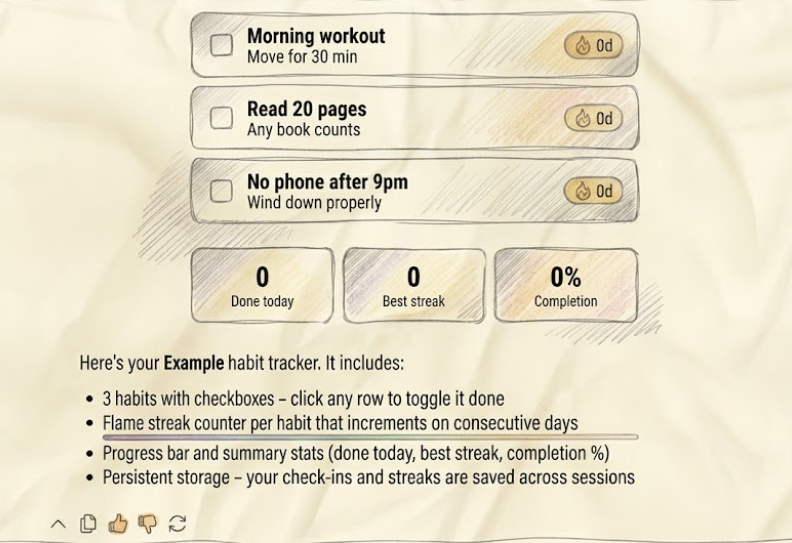
Memory and context
9. Memory for everyone
Claude used to start every conversation with zero knowledge of who you are. Your name, your job, your preferences, your ongoing projects - gone the moment you closed the tab. You could spend months using Claude daily and it would greet you like a stranger every single time.
Memory is now available to all users including free accounts. Claude builds a profile of you over time - your role, how you like to communicate, what you're working on - and carries it into every new conversation automatically. You never introduce yourself again.
To get the most out of it, tell Claude explicitly what to remember:
I want you to remember the following about me permanently:

Name: [your name]
Role: [your job or focus area]
Current projects: [what you're working on]
Communication style: [how you like responses — short / detailed / casual / formal]
Things to always avoid: [anything Claude should never do]

Save all of this to memory now and apply it to every future conversation.
10. Search past conversations
Every useful thing Claude has ever helped you with - a framework it built, a decision you worked through together, an analysis it ran - lives somewhere in your chat history, unsearchable. Most people just start over instead of finding it.
Claude can now search across all your past conversations. Ask it to find something you discussed weeks ago, pull context from a previous session, or build on work you did in a completely different chat. The history you've built up is actually accessible now.

11. Incognito chats
Everything you discuss with Claude gets stored and potentially used to build your memory profile. For most conversations that's fine. For some — sensitive personal situations, confidential work, anything you'd rather not have remembered - it isn't.
Incognito chats work exactly like a private browsing window. The conversation isn't saved, nothing gets added to your memory, and Claude starts fresh with no trace of it after you close the tab. Same Claude, same capabilities, nothing retained.

Automation and workflow
12. Scheduled tasks
Most people use Claude reactively. Something comes up, you open a chat, you ask. Claude only works when you're working - every output requires you to be there to request it.
Scheduled tasks change that entirely. Set a task once - a daily news brief, a weekly summary, a recurring report - and Claude runs it automatically at whatever time and frequency you choose. The output is waiting for you when you need it, no trigger
Use this to set up your first recurring task:
Run this task every [day / week / Monday] at [time]:

1. [First step - e.g. search for the latest news on X topic]
2. [Second step - e.g. pick the 5 most relevant items]
3. [Third step - e.g. write a short summary of each]

Format: [how you want the output]
Tone: [direct / analytical / simple]
Save the result as [filename] in my [folder].
Keep it under [length] - readable in under [X minutes].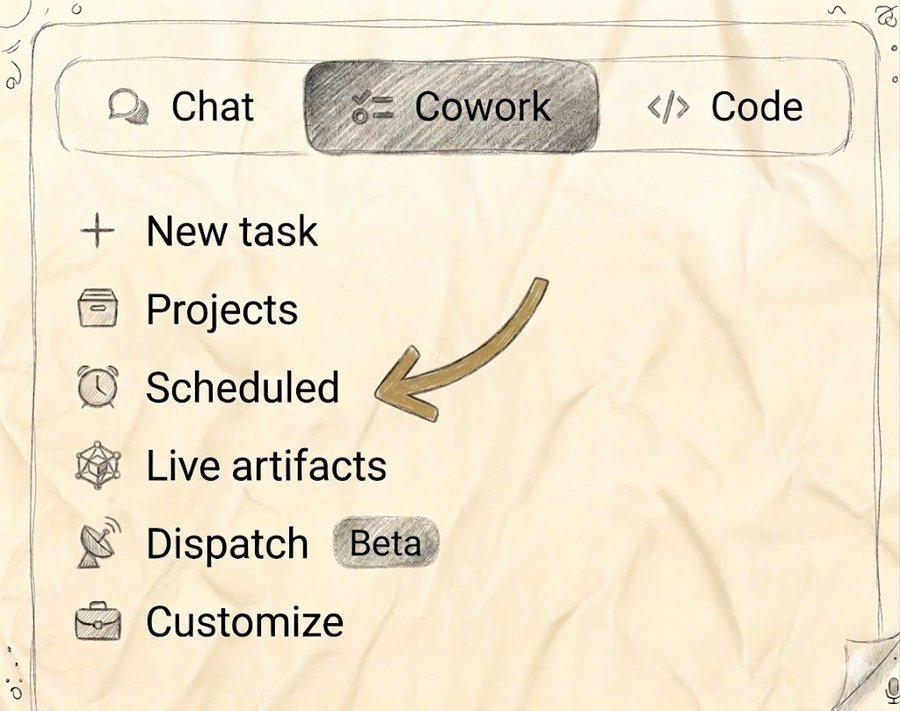
13. Computer use
Every task that involves clicking through a website, filling out a form, copying data from one place to another, or navigating an interface step by step has always required you to be there. Claude could tell you exactly what to do - it couldn't do any of it for you.
Computer use changes that. Claude can now open files, click buttons, navigate websites, fill out forms, and interact with whatever is on your screen - on your behalf, while you step away. It sees what you see, moves the cursor, and completes the task. Not an instruction for you to follow. The task itself, handled.
Available in Cowork for Pro and Max plan users. Turn it on in settings and describe what you need done. Claude runs it and comes back when it's finished.
14. Control Cowork from your phone
Cowork lives on your desktop. That's where the files are, that's where Claude runs tasks, that's where the work happens.
For most users that also means being physically present to manage it - sitting at the computer to check what's running, assign new work, or see what finished.
The Claude mobile app now has a persistent thread that connects directly to your Cowork session. Whatever Claude is working on at your desk is visible and controllable from your phone.
You leave the office, Claude keeps running. Check in from wherever you are, see what got done, send the next task - without touching your computer.
15. Opus 4.8
Anthropic's latest model just shipped. Opus 4.8 brings improvements across coding, reasoning, and practical knowledge work - but the headline is reliability. This is the most accurate and honest version of Claude yet.
Previous models would sometimes generate confident-sounding answers when they weren't certain. Opus 4.8 is significantly better at knowing what it knows and flagging what it doesn't. The output is more trustworthy, not just more capable.
Switch to it in the model selector for anything where getting it right matters more than getting it fast.

Anthropic will keep shipping. Most users will keep missing it.
The fifteen things in this article didn't come with announcements. They appeared, blended into the background, and most users kept working the same way they always had.
That's not changing. The pace is accelerating, not slowing down.
Pick three items from this list - the ones closest to something you actually do every week. Set those up today. The others will still be there when you're ready. Knowing they exist is already most of the work.
