Is it possible to create TWO CONSISTENT CHARACTERS across different...

TechHalla@techhalla
33 views
Nov 06, 2024
~2 min read
Advertisement
1
Is it possible to create TWO CONSISTENT CHARACTERS across different scenes with AI?
Absolutely—you just need the right tools and prompts.
And you’ll find everything you need in this thread 🧵👇


Absolutely—you just need the right tools and prompts.
And you’ll find everything you need in this thread 🧵👇
2
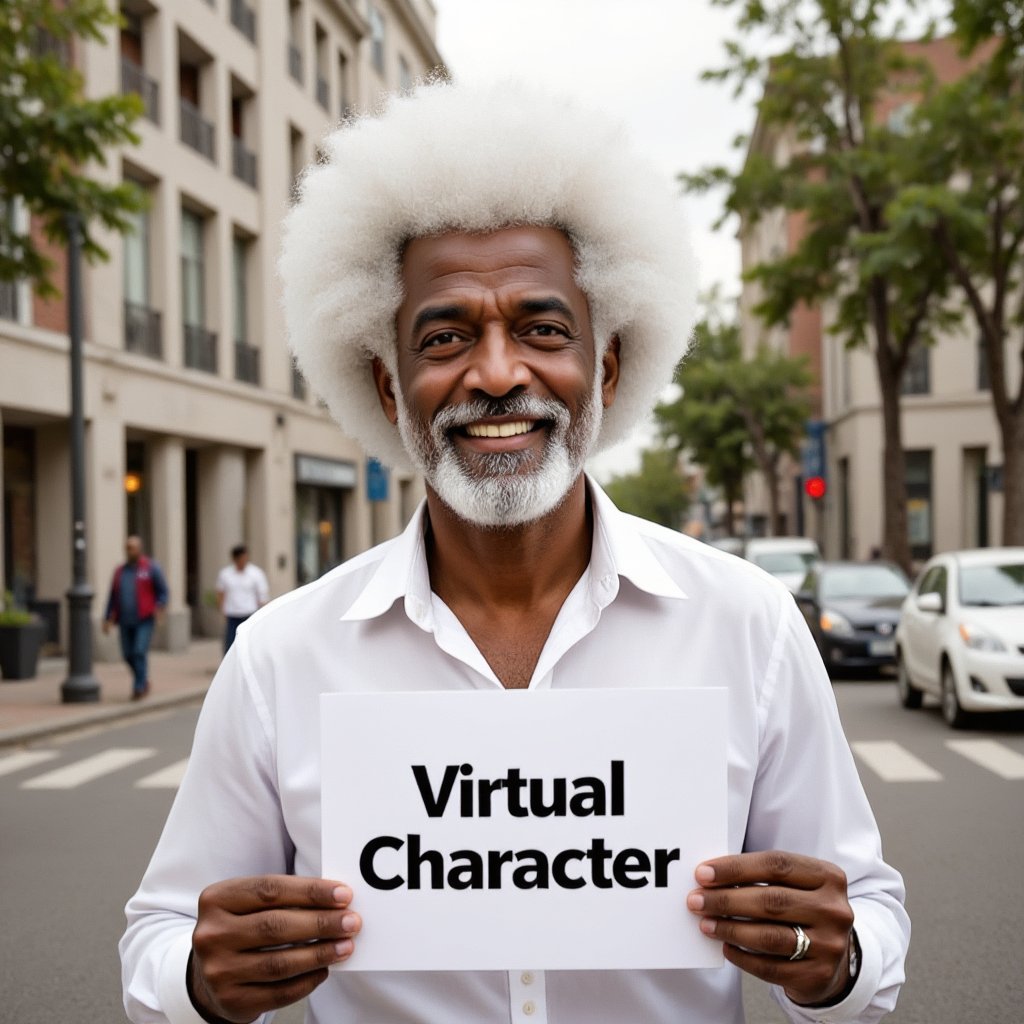
Here’s the plan: we’ll train two LoRAs—one with my photos and another with an artificial character.
But don't worry! It’s super easy thanks to The Flux Train by @saquiboye!
I’ll guide you step-by-step, and there’s a test link at the end of the thread. ⬇️
But don't worry! It’s super easy thanks to The Flux Train by @saquiboye!
I’ll guide you step-by-step, and there’s a test link at the end of the thread. ⬇️
3
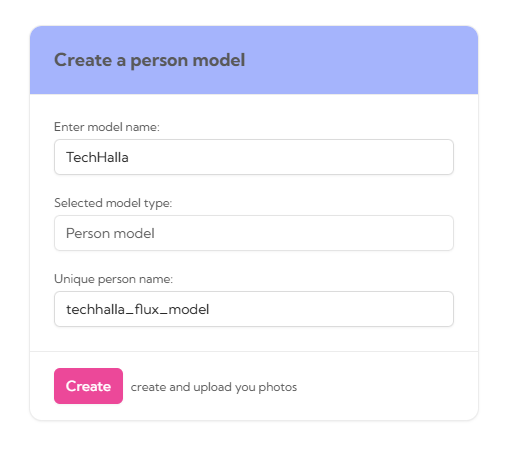
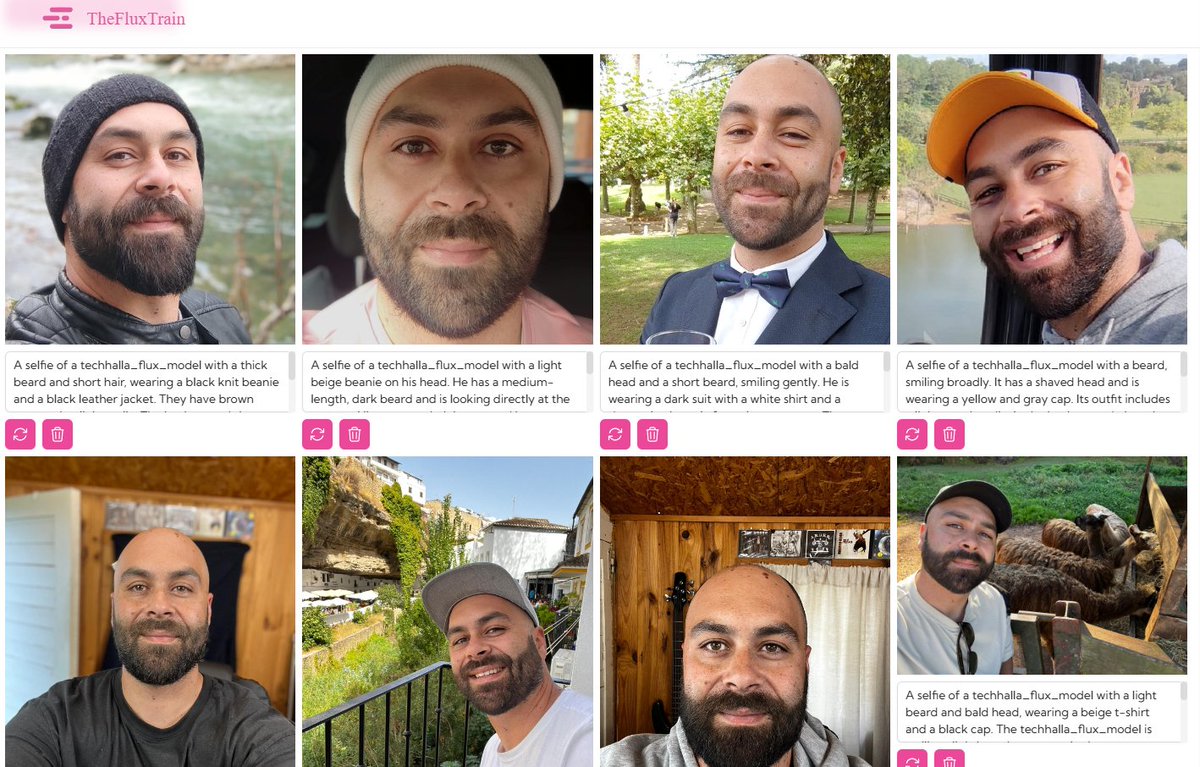
Once inside, select the Create a person model option. Choose a name and a unique name for the character (trigger word). Next, upload the photos (I trained it with 8) and click 'Auto caption all images.' You’ll see it automatically adds captions. Now you’re ready to click 'Train.


4
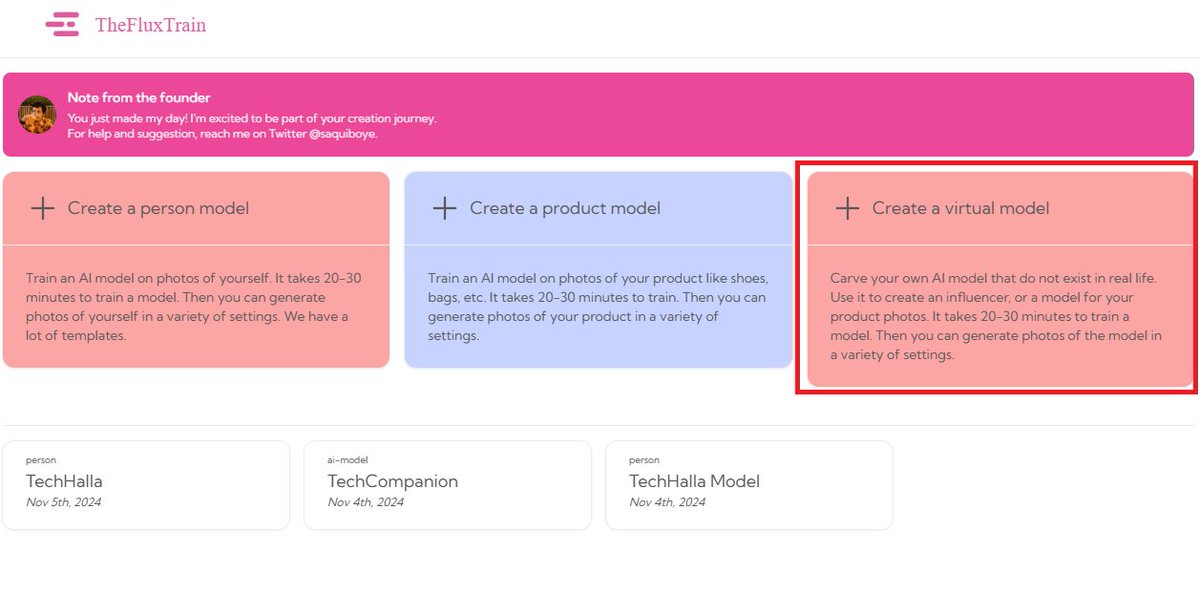
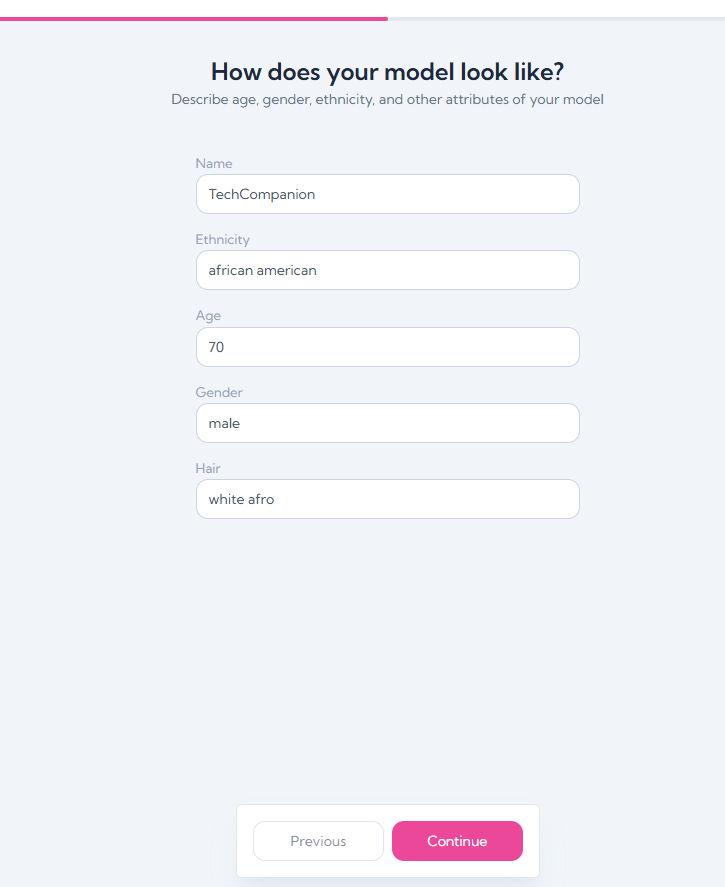
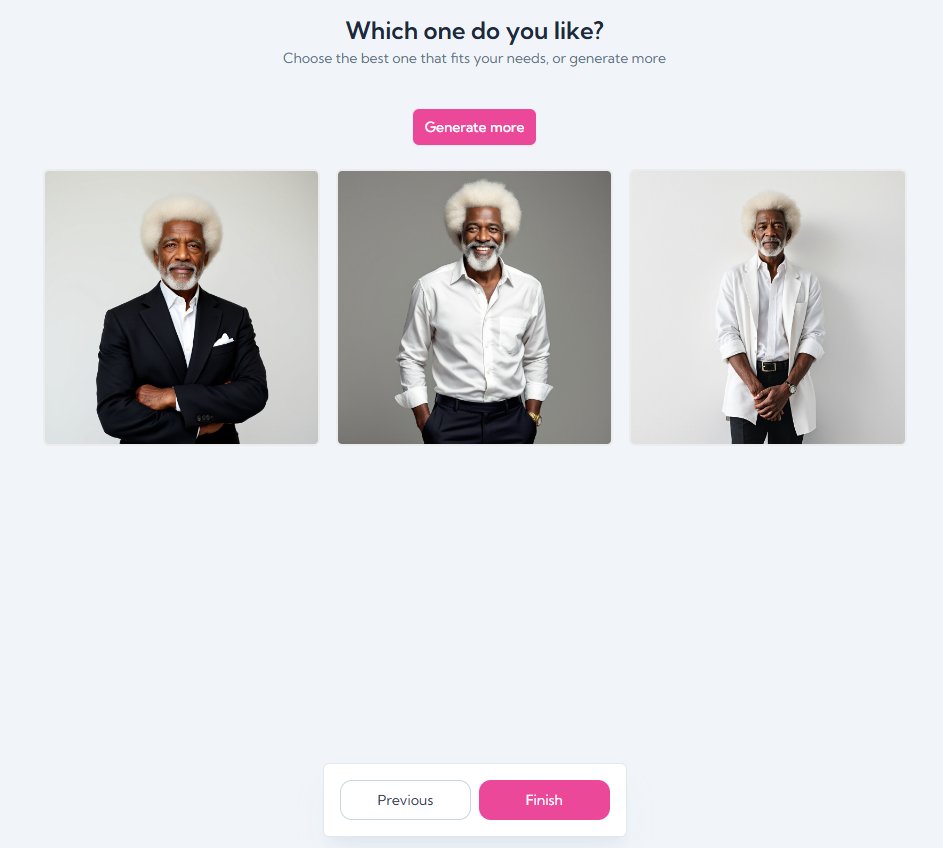
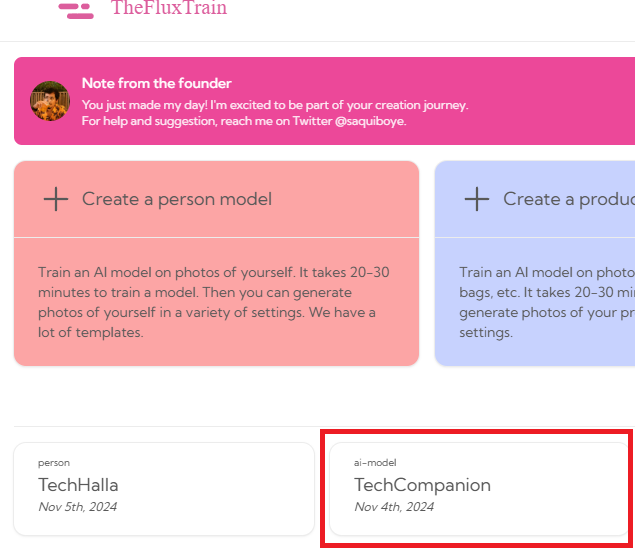
The process takes about 30 minutes. Meanwhile, let’s create the virtual character. Go back, click 'Create a Virtual Model,' fill in the settings, and choose the best of the 3 generated images
5
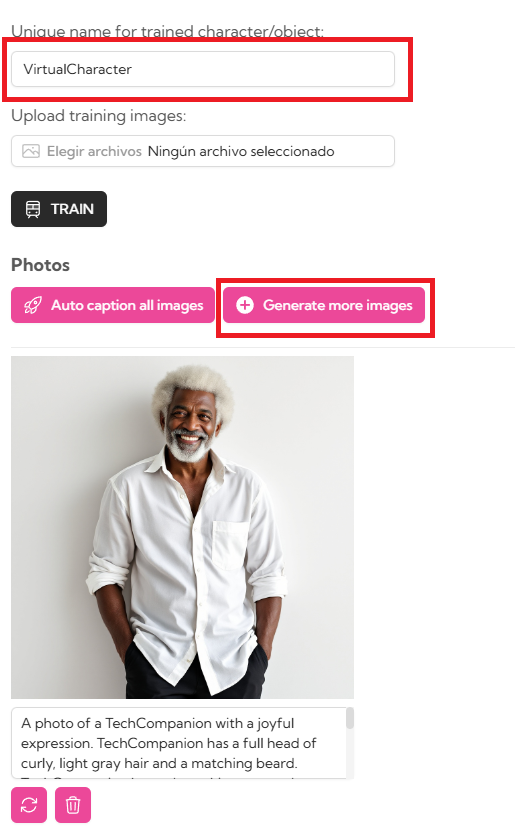
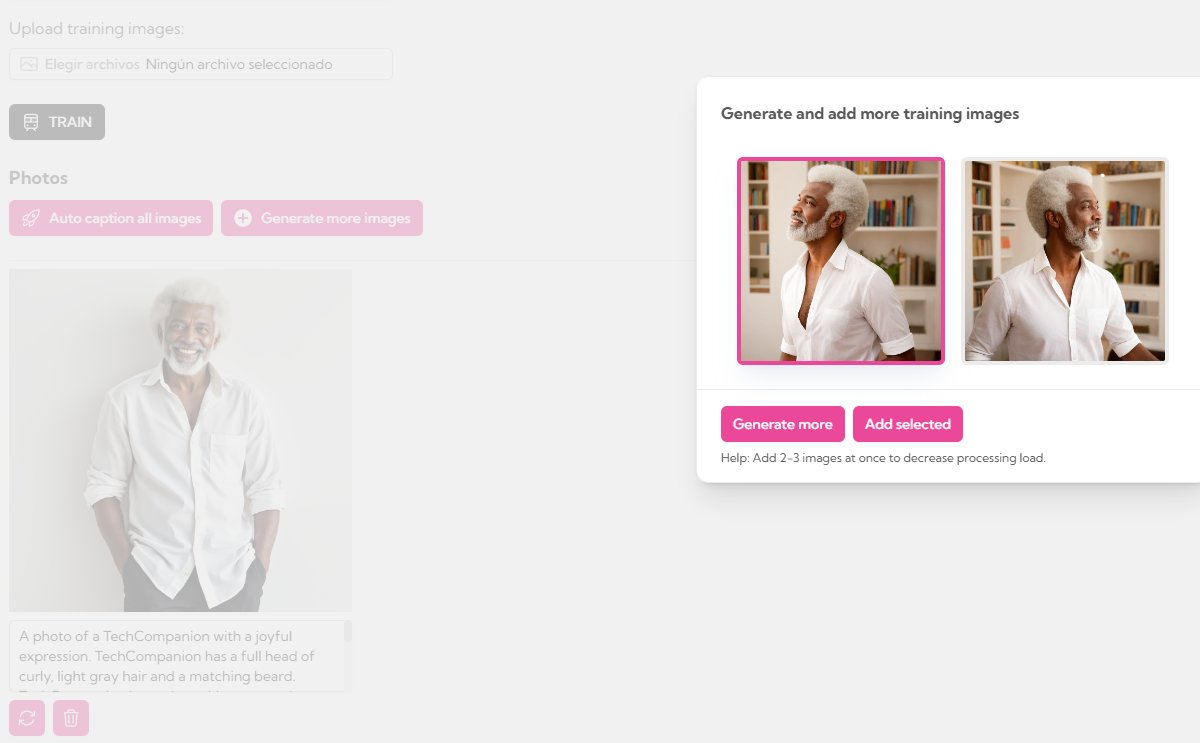
Choose a unique name for your character (trigger word) and then generate 5 more images. Click 'Generate more images' and select the ones that fit best. Once you are done, click on 'Train'.
6
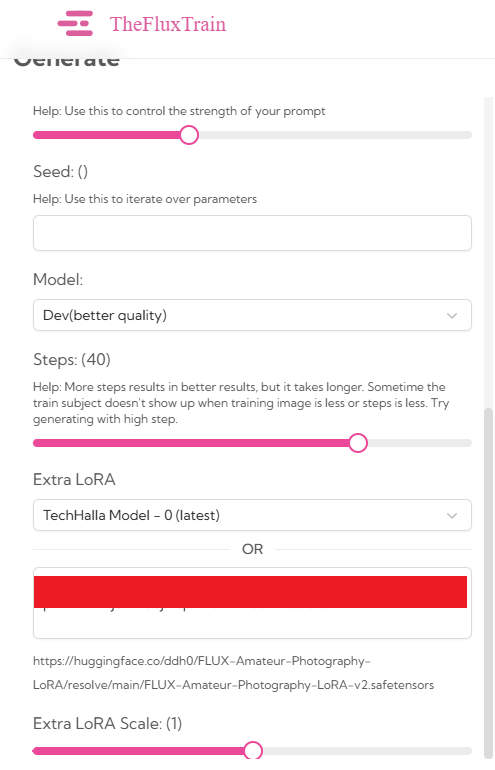
Once our models are trained, go to one of them—for example, the virtual character. Click 'Generate' to enter the playground and start creating. But first, go to advanced controls, select the other model under 'Extra LoRA,' and set the scale to 1. Now we’re ready for the prompt.
7
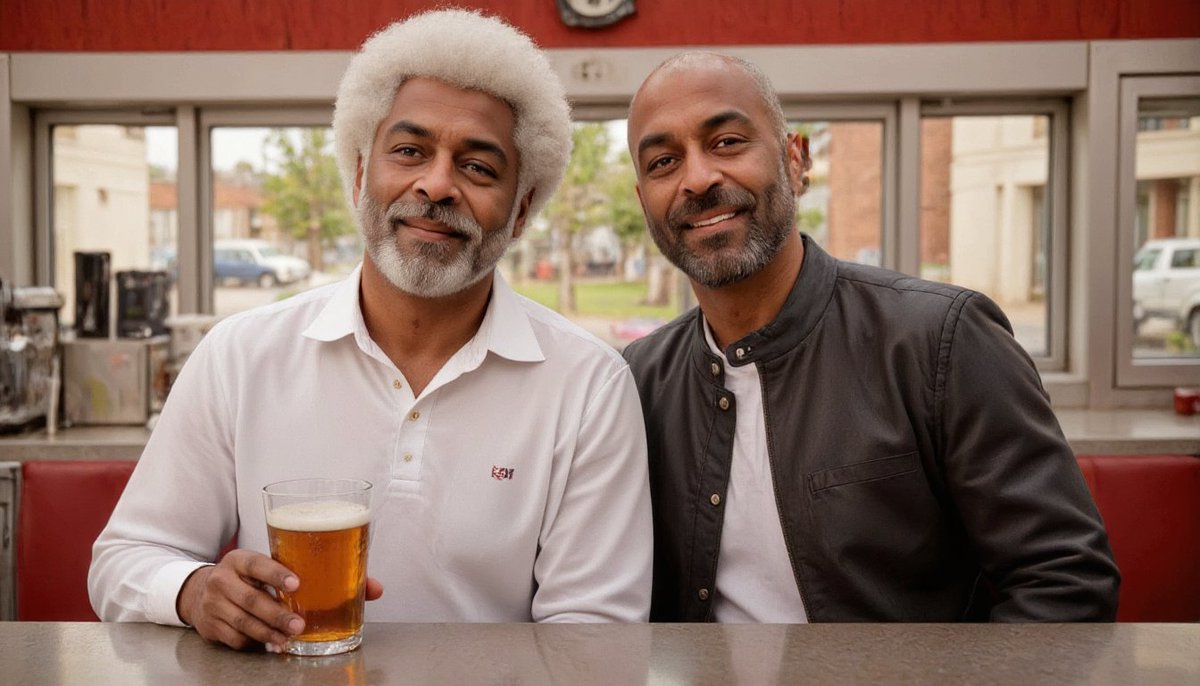
The main thing to keep in mind now is that we have to include the character names in the prompt. Remember the trigger words? You can find the prompt in the ALT of this image. But what happened to the characters? Hold on! We’ll fix it now!

8
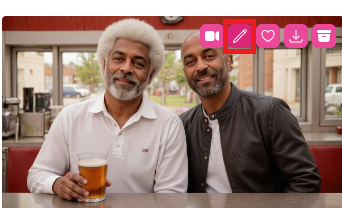
Now we're going to do some inpainting. Click on the edit button for the image and create a mask around the Virtual Character. Set the Extra LoRA Scale to 0 and hit generate. What we're doing here is giving it the exact look we want. Halfway there!
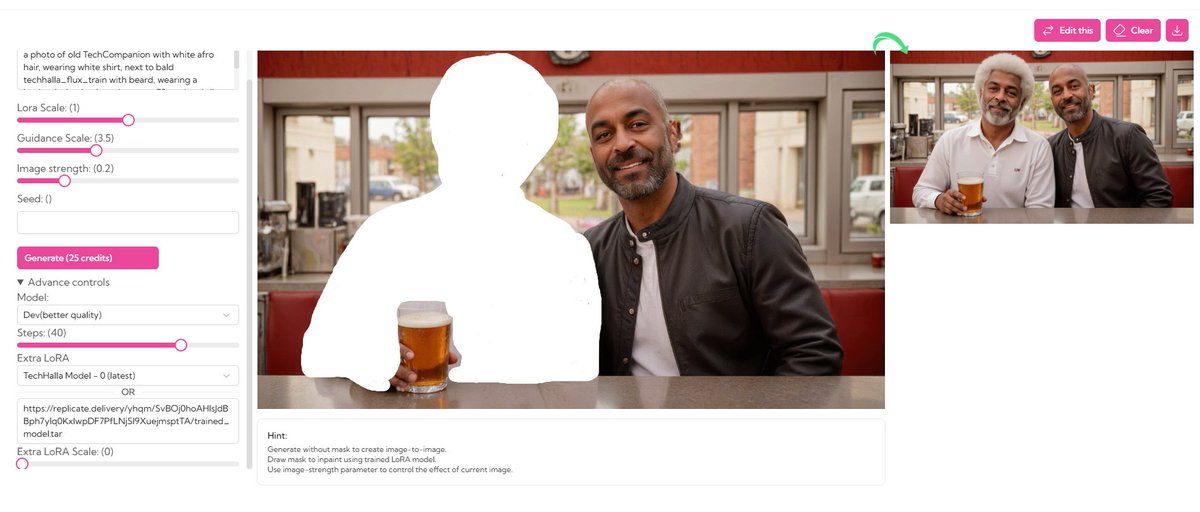
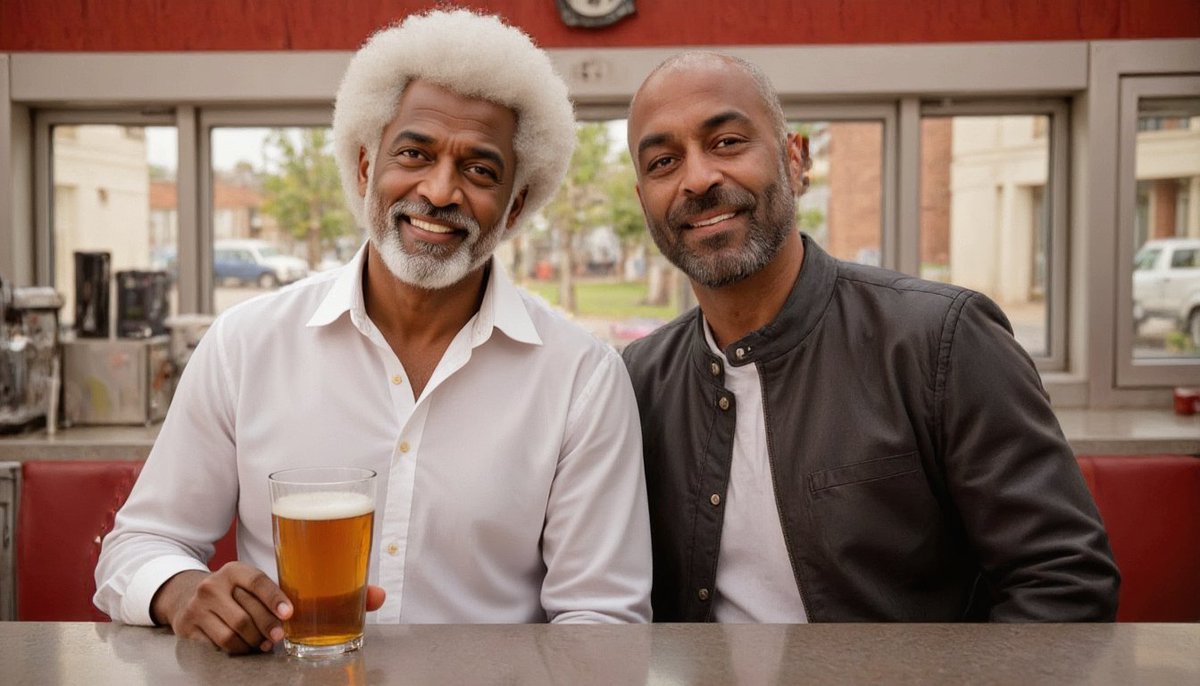
9
Click on 'Edit this' to update the image. Delete the mask and create a new one over where the other character should be. Swap the Scales so that the main one is 0 and the Extra is 1, then run the prompt.
There we go!
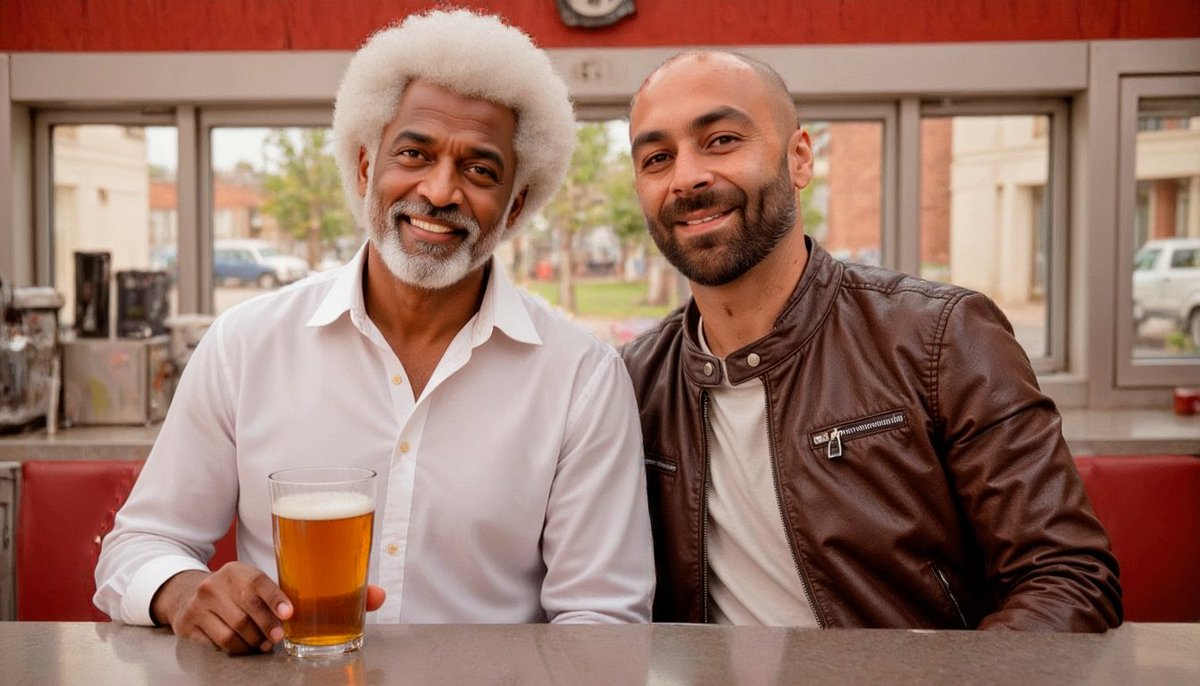
There we go!
10
You got it! Now just repeat this process to generate all the scenes you want! I’ll leave the prompts in the ALTs—you’ll see they’re very similar, just with a few parameters changed.
And finally, here’s the link so you can try it out! ⬇️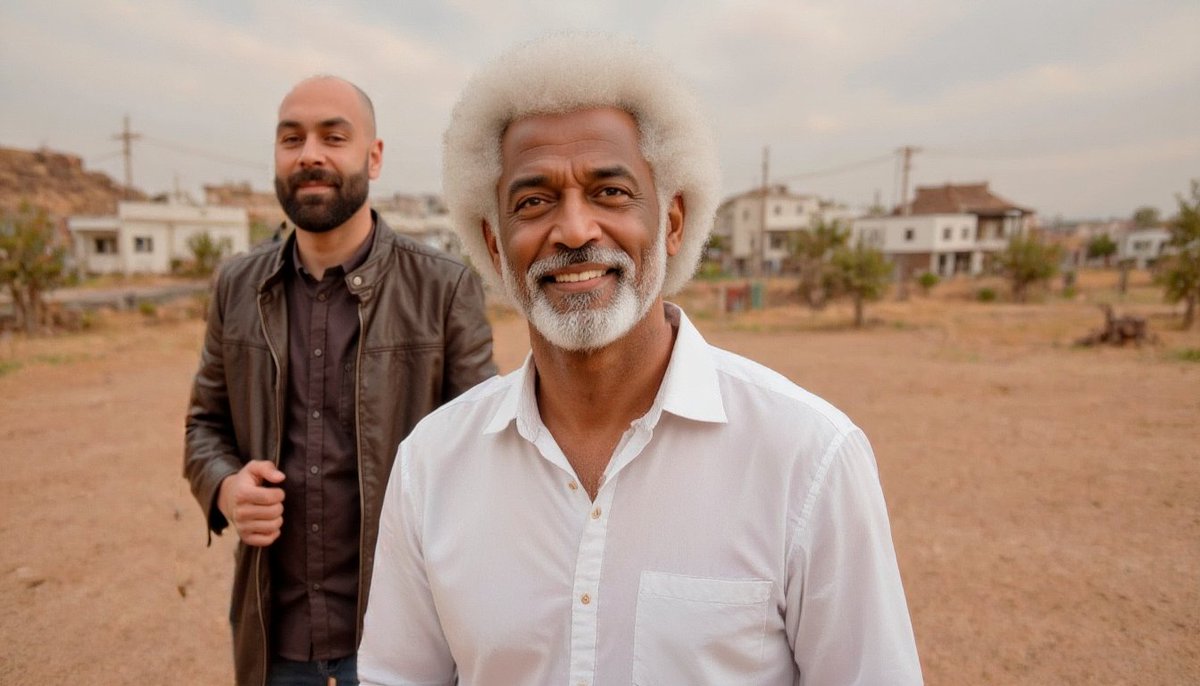
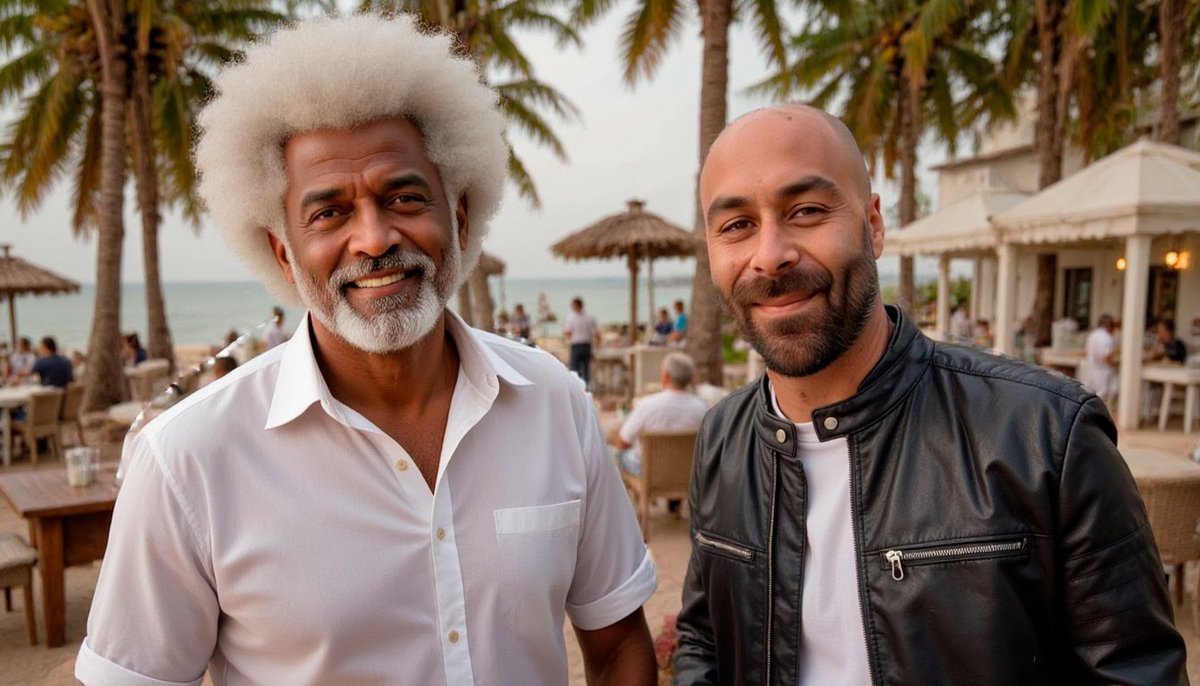
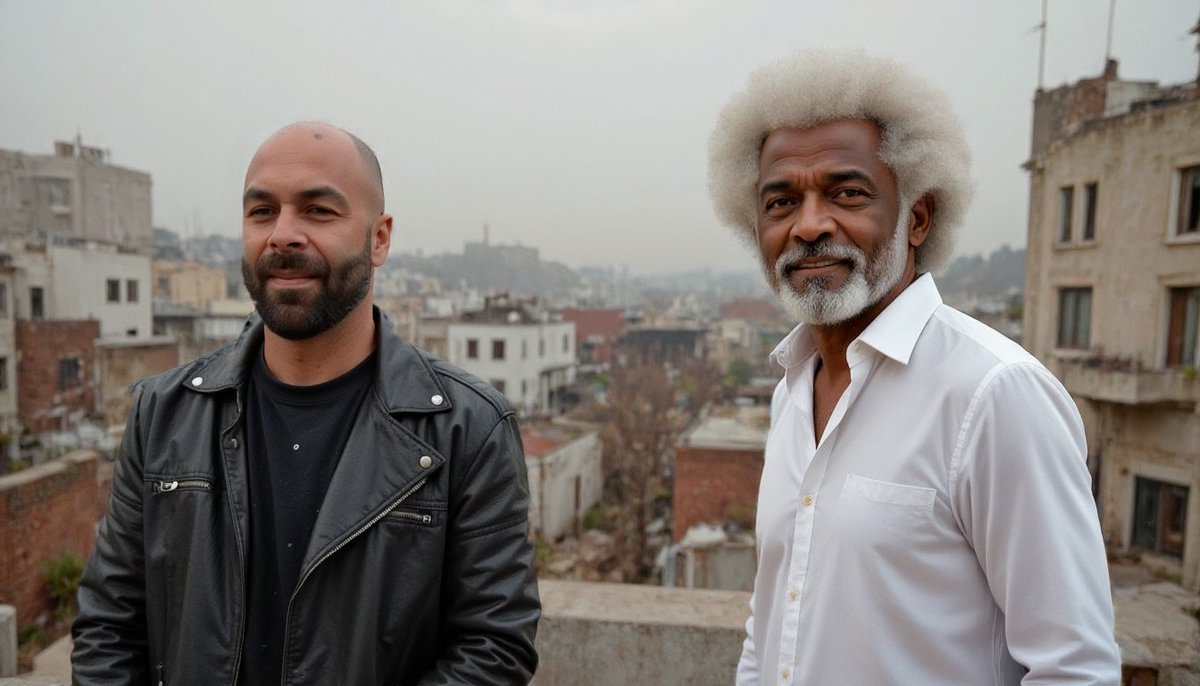
And finally, here’s the link so you can try it out! ⬇️
11
You've got everything you need, so it's time to jump into The Flux Train through this link and start training models to generate two consistent characters across different scenes!
thefluxtrain.com
thefluxtrain.com
12
Let me know in the comments what you thought, and follow me at @techhalla for more guides on generative AI.
If you enjoyed this, drop a like, repost, and bookmark the main post—it helps me out a ton!
If you enjoyed this, drop a like, repost, and bookmark the main post—it helps me out a ton!
TechHalla@techhalla
Is it possible to create TWO CONSISTENT CHARACTERS across different scenes with AI?
Absolutely—you just need the right tools and prompts.
And you’ll find everything you need in this thread 🧵👇
Absolutely—you just need the right tools and prompts.
And you’ll find everything you need in this thread 🧵👇

