GPT-6 Astra + DaVinci MCP (Beginner Tutorial)

I talk to business owners who have piles of photos and videos, but no time to post to social media.

They don't know what caption to write. They don't know how to edit videos.
So, all that good stuff.... just sits there.
I gave GPT-6 Astra + DaVinci Resolve a folder of coffee shop photos and videos.
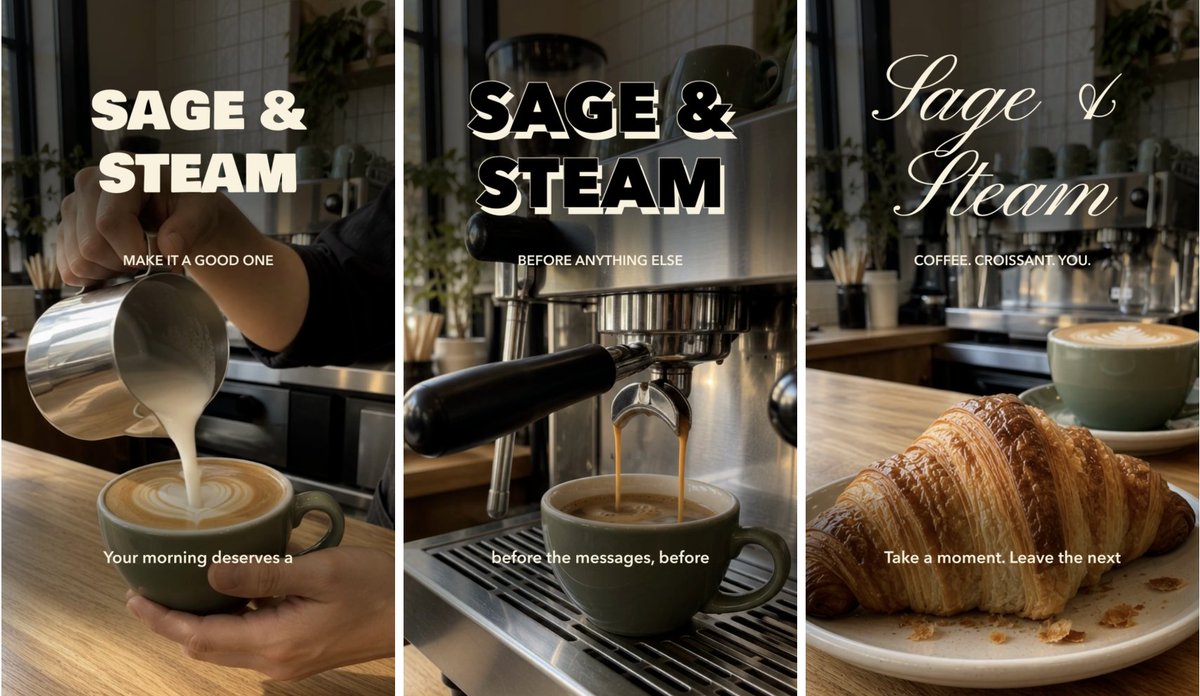
It turned them into 3 different 30-second videos, ready for social media.
With titles, captions, voiceover and music.
Then I posted them on Instagram.
If you have photos of your business sitting on your phone, here's how to turn them into something you can post!
I'll show you the setup and 5 steps, with ONE prompt to copy at the end.
Watch the 3 finished videos
Start by connecting GPT-6 Astra to the editor.
What You Need
- GPT-6 Astra in Codex/ChatGPT Work: where you type your instructions.
- DaVinci Resolve: the app that edits and exports your video.
- Your photos and videos: saved in a folder on your computer.
To connect the 2 apps, I used Samuel Gursky's DaVinci Resolve MCP and editing skills.
The MCP lets GPT-6 Astra work inside the editor.
The skills give it instructions for doing the edit.
Here's how to set that up.
First, Connect DaVinci Resolve
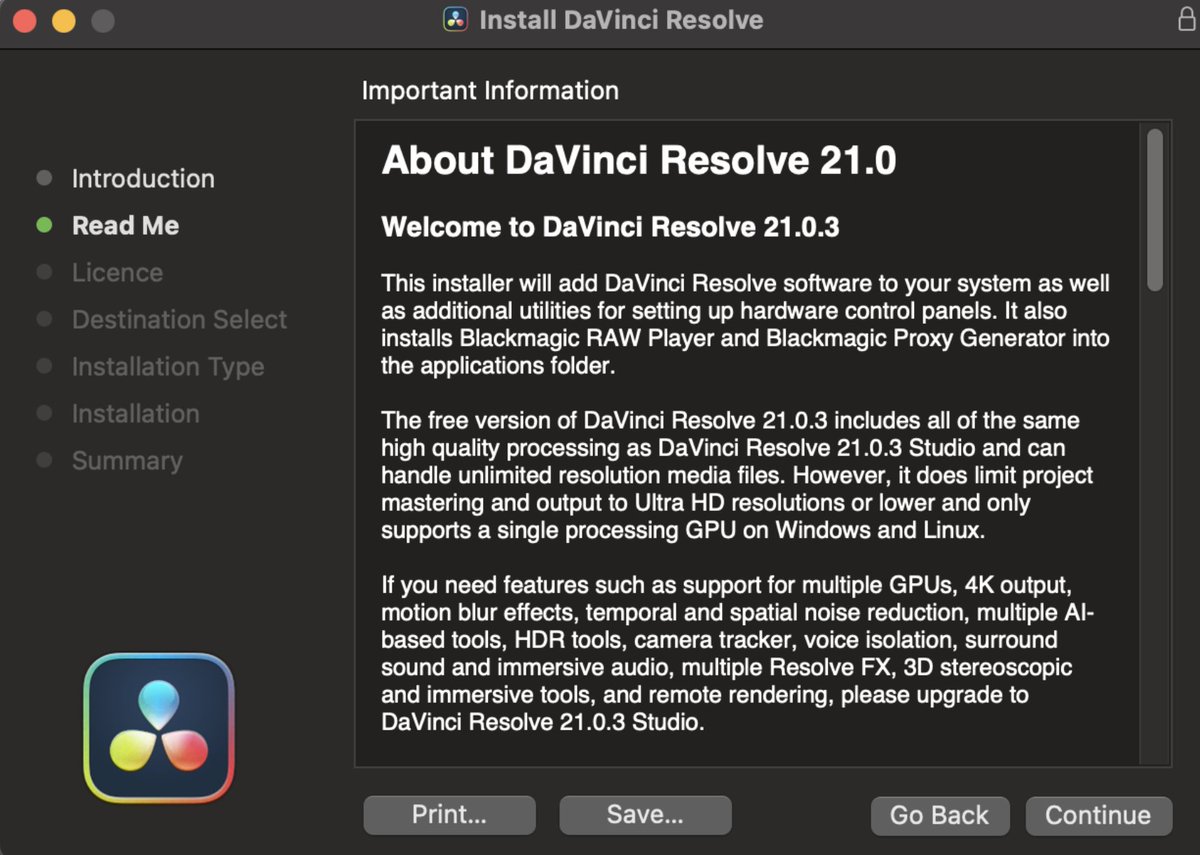
I used DaVinci Resolve Free 21.0.3 on my Mac.
Download DaVinci Resolve, then open it.
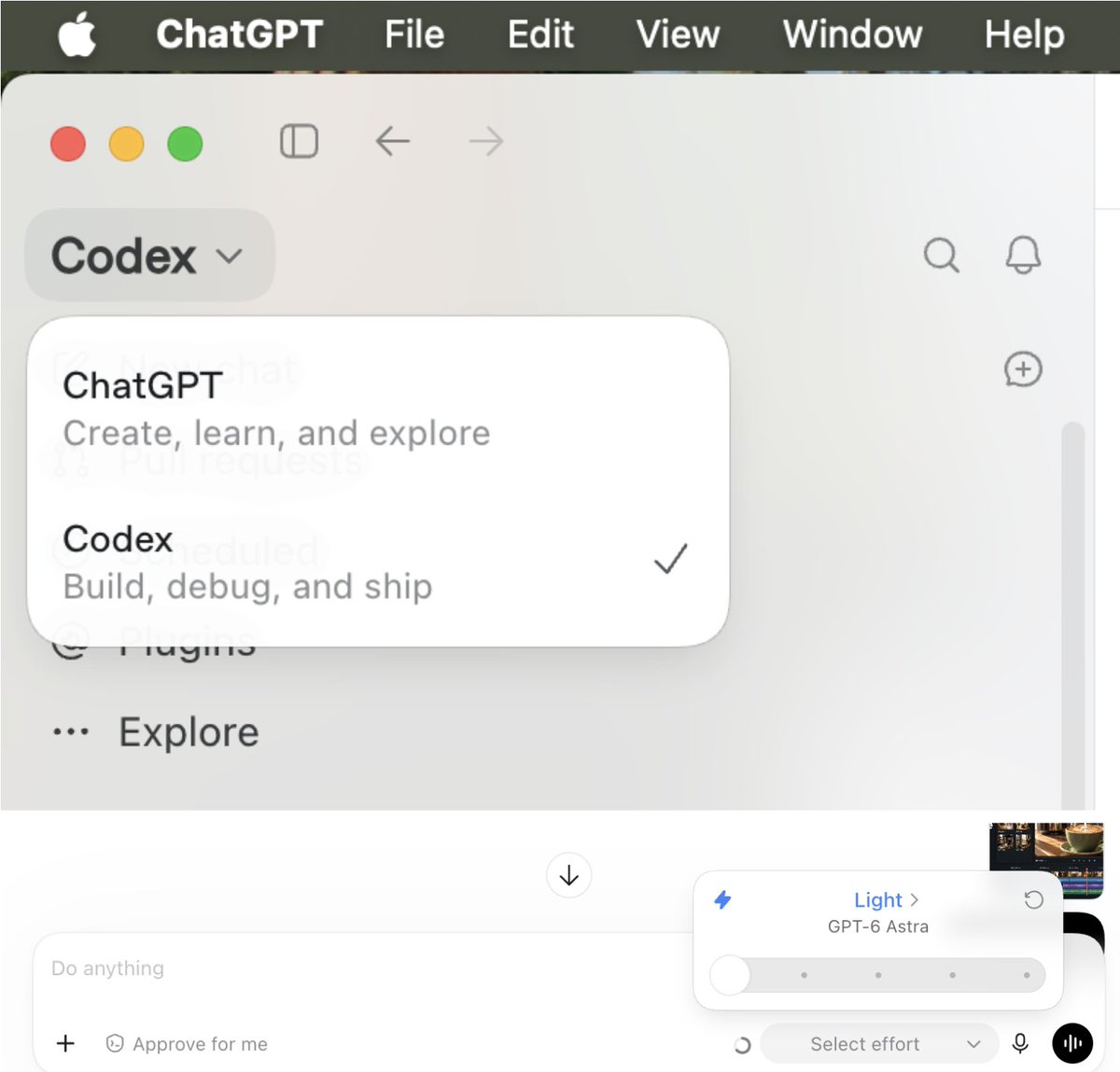
Open Codex and select GPT-6 Astra. Light effort can also work for this.
Give GPT-6 Astra the DaVinci Resolve MCP repository and ask it to connect the apps and install the editing skills.
The setup can differ by version, so have it check yours and tell you what to install.
My setup needed Python 3.12.10, software the connection uses to run.
GPT-6 Astra installed it from the official Python download.
After installation:
- Restart DaVinci Resolve.
- Click New Project, give it a name, then click Create.
- Open the project.
- Choose Workspace → Scripts → resolve_bridge.
That starts the connection inside Resolve.
TEST IT:
Ask GPT-6 Astra to name your open Resolve project without changing it.
Compare its answer with the project on your screen.
If the names match, GPT-6 Astra can read your project!
If it can’t, ask GPT-6 Astra to help fix the connection.
You might need to quit DaVinci Resolve after the fix.
You'll also need to restart resolve_bridge after reopening DaVinci Resolve.
Once it can read your project, give it the files you want to use.
1. Collect Your Photos And Videos
My folder had:
- espresso pouring
- milk going into coffee
- croissants
- a photo of a croissant and a latte on the counter
Put your files in 1 folder on your computer.
Here's my coffee shop folder:

Add your logo and brand colors if you have them.
You can also include a screenshot of fonts or a video style you like.
Want a voiceover?
Add a recording of yourself or a narrator.
Music and voiceover are OPTIONAL. You can just use on-screen text instead.
Point GPT-6 Astra to that folder so it can use them.
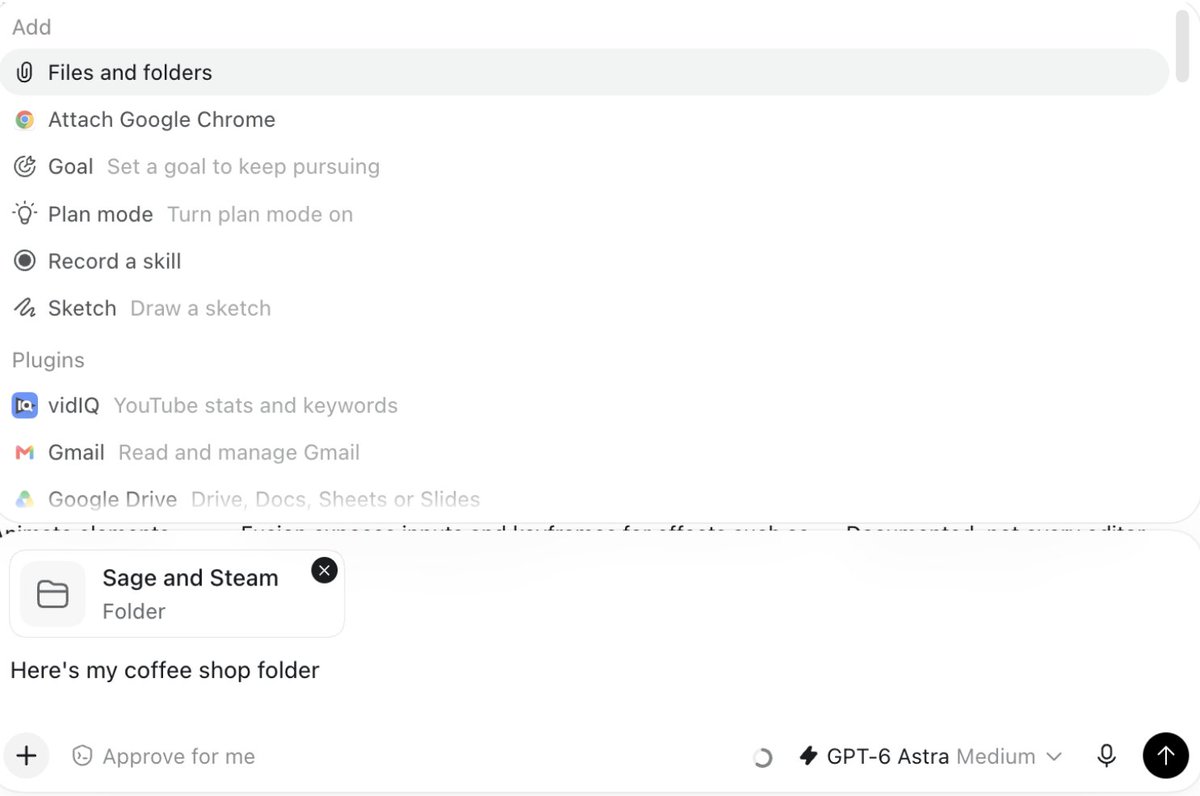
Next, give GPT-6 the task.
2. Tell GPT-6 Astra What You Want
Use the prompt at the end.
Tell GPT-6 Astra what you sell, who the video is for, and what you want people to do after watching.
I wanted 3 different 30-second videos promoting coffee and croissants, to make people want to stop in for breakfast.
Ask it to explain the planned edit in chat, then review.
Start with 1 video.
Or ask for different openings and messages, if you want several.
Read the ideas and ask for changes before it starts.
Once the message is right, show it how you want the video to look.
3. Show It The Style You Like
I didn't like the first fonts.
So I stopped the edit and found 3 examples of coffee branding.
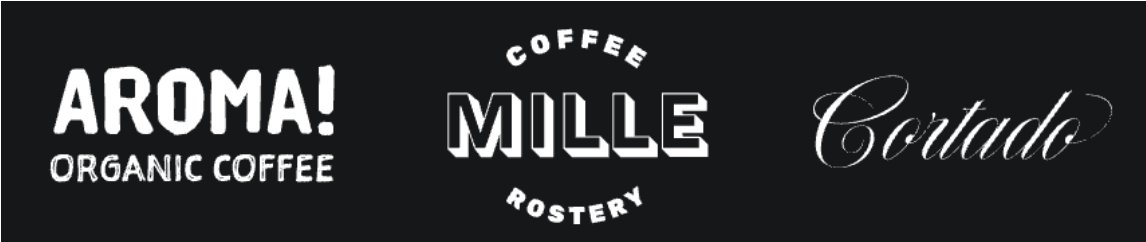
I asked GPT-6 Astra to use a different style for each video.
That gave me 3 versions of Sage & Steam: bold lettering, an outlined treatment, and flowing script.
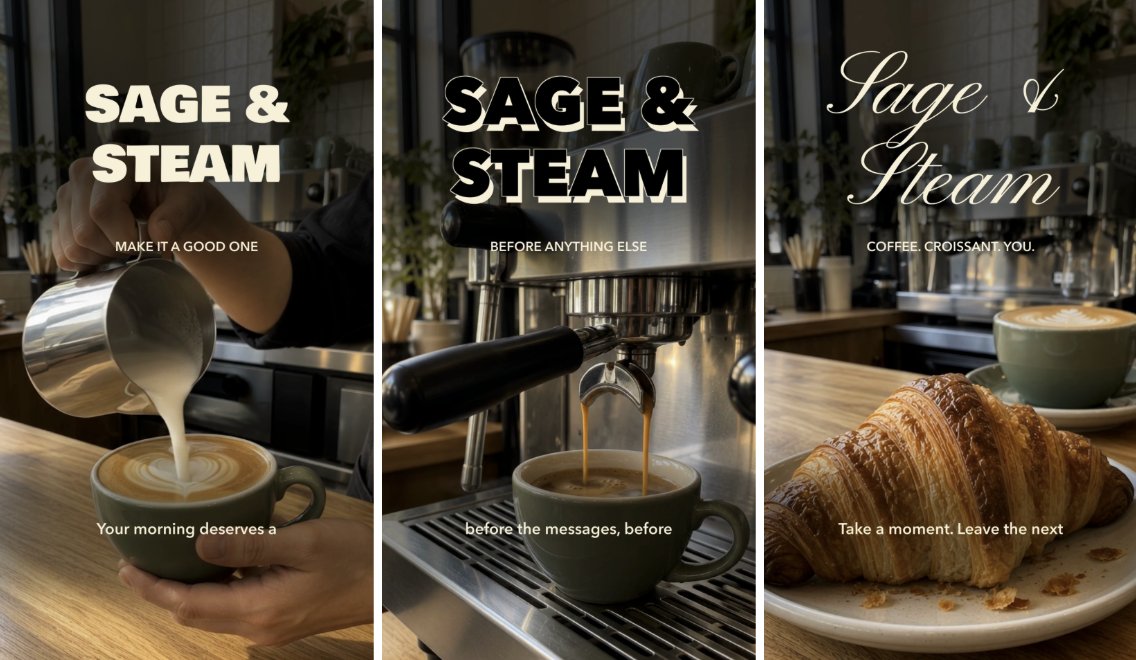
A screenshot is enough to ask for a similar style.
If you want a specific font, include the font file.
My DaVinci Resolve setup needed fixes for animated text, so I checked a short preview before the full edit.
Have it make 1 preview using your footage and chosen title style.
Watch the preview.
Can you read the words?
Is the title covering the coffee?
If something looks wrong, tell GPT-6 Astra what to change and ask for another preview.
Once you're happy with the style, have it finish the video.
4. Make The Finished Video
For my coffee videos, I wanted time to see the pour and the finished drink before moving to the next shot.
GPT-6 Astra arranged the footage and added the titles and captions.
It added a slow zoom to the breakfast photo.
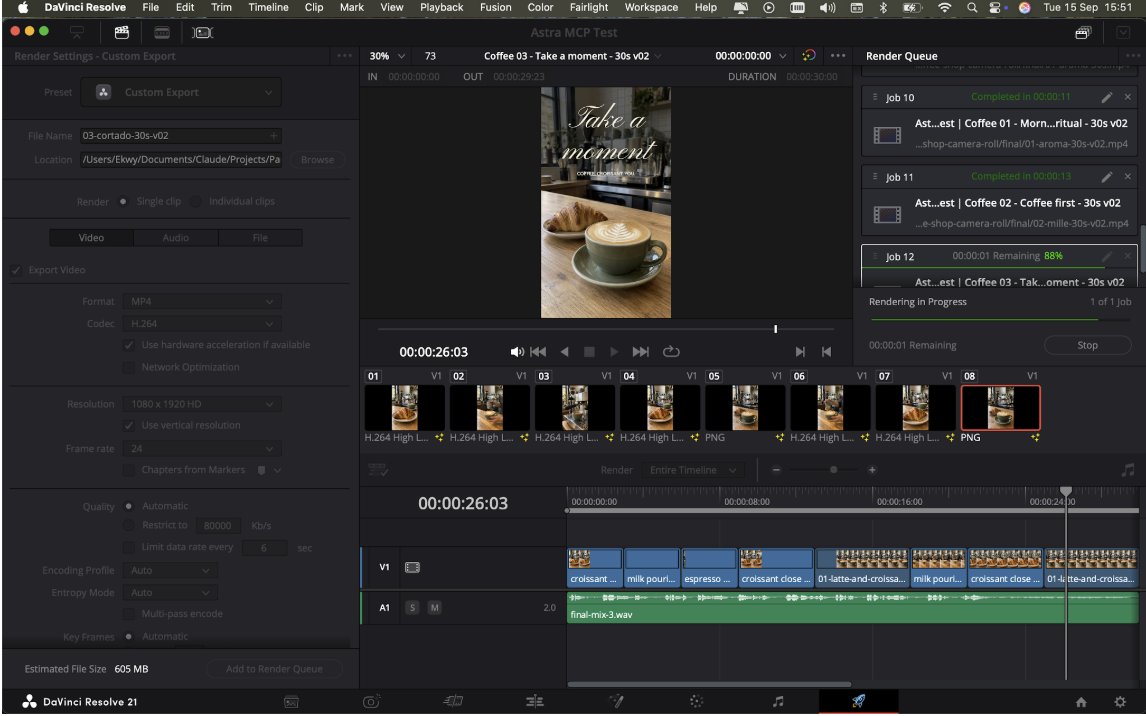
It included narration and background music but adjusting the music volume through the connection didn't work.
So GPT-6 Astra lowered the music separately and added it to Resolve.
Now, ask it to export a 30-second, 9:16 video for Instagram.
Watch the whole exported video.
- Can you read the text?
- Is the product visible?
- Can you hear the voice over the music?
Ask for changes in natural language: make the title larger, move it away from the cup, or hold the croissant shot longer.
Have GPT-6 Astra export the revised version.
Save the editable Resolve project so you can return to it.
I finished with 3 different 30-second videos, ready to schedule.
5. Schedule With Blotato
GPT-6 Astra scheduled the videos with Blotato, the social media APIs I built for automated scheduling and DM automations with AI agents.
Connect your Instagram account in Blotato.
Give GPT-6 Astra the Blotato setup guide and ask it to help connect.
You'll need a paid Blotato plan for this.
My account was already connected.
I asked GPT-6 which accounts it could see and checked that it returned the right Instagram account.
Have it draft a caption for each video.
Review the captions and videos together, then give it the dates and times for scheduling.
Ask for the scheduling confirmation and check Upcoming Posts in Blotato.
All 3 appeared in Blotato's Upcoming Posts.
I could see the videos and captions together.
Now use the same steps with your own business folder:
Set this up yourself (copy this)
Use promo code TWITTER50 for 50% off first month, expires end of Sep.
Prompt
I want to turn the photos and videos in this folder into content for my business.
Media folder: [full folder path]
Business: [name and what you sell]
Promote: [product, service or offer]
Audience: [who it's for]
After watching, I want people to: [visit, book or buy]
Make: [1 or 3] different 30-second vertical videos for Instagram.
Style: [use my branding / use my reference images / suggest a style]
Audio: [my recording / music and text / no added audio / help me choose an AI voice]
Use DaVinci Resolve MCP and its editing skills.
Check the connection and confirm the name of my open Resolve project.
If it isn't connected, use https://github.com/samuelgursky/davinci-resolve-mcp to help me set it up for my computer and Resolve version.
Include Python and the bridge if needed. Install and read the editing skills and references. Explain any steps I need to do myself. Keep existing projects and connections intact.
Confirm that the connection works before editing.
Choose files that fit my offer. Ask for missing details; don't invent prices, claims or reviews. Keep my original files intact.
Show me the opening, shot order and on-screen text. If I'm making several videos, give each a different opening and message.
Make a short preview with my footage and proposed titles. Let me request changes and approve it before making the full edit.
Use my chosen audio. If there's narration, add readable captions and keep music below the voice. Ask before using a paid voice service.
Finish the approved edits and export each as a 30-second, 9:16 MP4 at 1080 × 1920. Check playback, duration, framing, text and audio. Show me the exports and save the editable Resolve project.
Draft captions with any required music credit. After I approve the videos and captions, ask for my Instagram account, dates and times. Schedule through Blotato, then show me the confirmation.
Keep this folder for your next batch, with your branding and approved style references.
Add the new photos and videos, change the offer in the prompt, and review the new edit before scheduling.
Don’t forget, the promo code TWITTER50 expires end of Sept.
♻️ SAVE this article and RETWEET it and you can DM me questions!
FAQs
Which DaVinci Resolve version do I use?
Do I need to pay for DaVinci Resolve?
Is the MCP an official one from DaVinci Resolve?
Will this setup work with the paid version?
Do I need to learn DaVinci Resolve to use this tutorial?