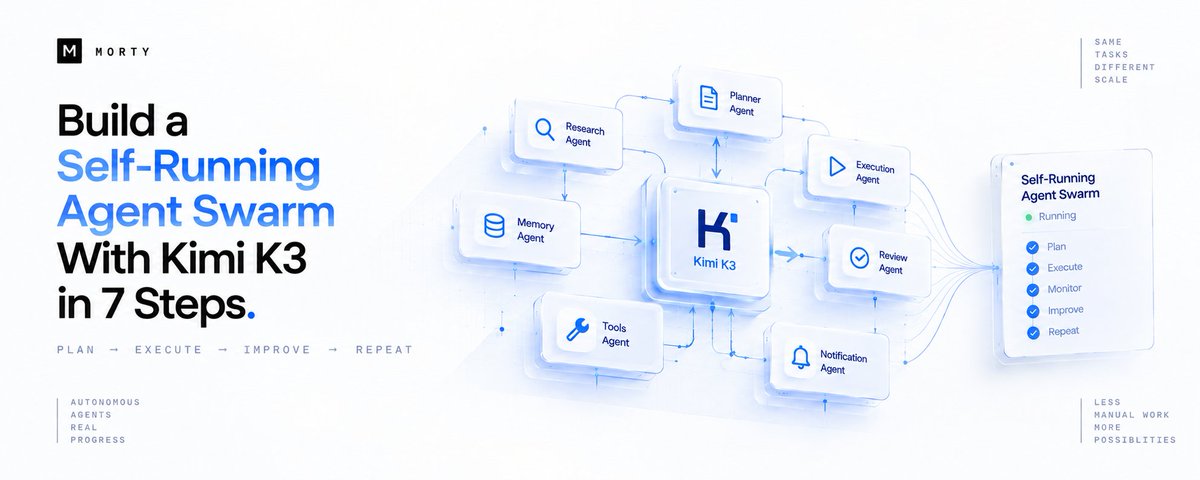
Build a Self-Running Agent Swarm With Kimi K3 in 7 Steps.

Not a chat you babysit. A swarm that dispatches itself on a schedule, runs while you're asleep, and hands you a finished result by morning. Here's the real 7-step build, on features that actually ship.
Follow my Substack to get fresh AI alpha:https://substack.com/@0xMortyx
Most people run Kimi K3's Agent Swarm the same way they run any chat: they open it, type a task, and wait. That's the easy 10% of what it can do.
The other 90% is making the swarm start itself. Kimi ships two real, official pieces that make that possible: Agent Swarm, an orchestrator that decomposes a task and dispatches parallel sub-agents without you defining a single role, and Scheduled Tasks, a native trigger that runs a fixed prompt on a cadence you set, in the cloud, without keeping anything open. Wire them together correctly and you get a system that dispatches itself, runs while you're not there, and hands you a result instead of a chat window you have to remember to open.

One honest gap before we start: What Kimi doesn't ship natively is persistent memory that carries lessons across runs the way a coding agent's project file does. That's a real, acknowledged gap in the ecosystem, not something this article is going to pretend away. Step 6 covers the honest workaround.
1. Confirm the Task Is Actually Swarm-Shaped
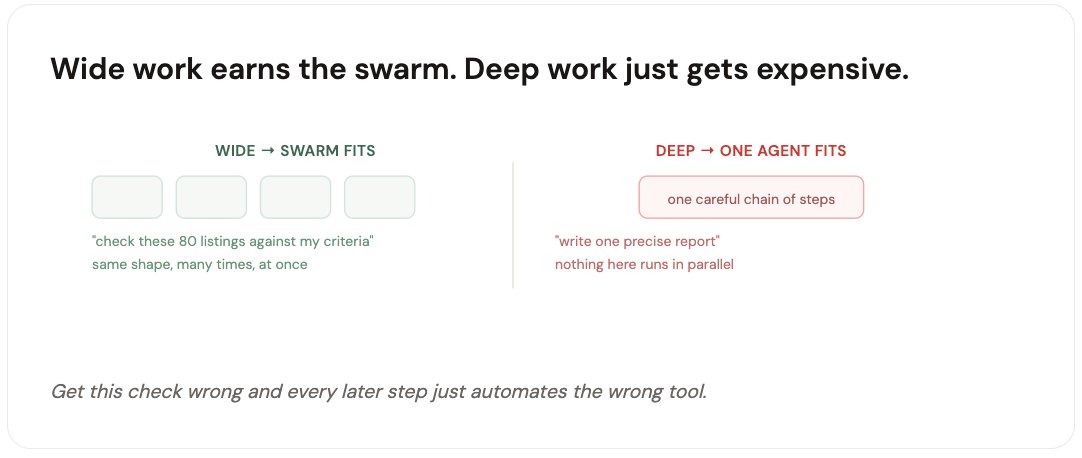
Wide and repetitive earns the overhead. One careful task doesn't.
the fit check
Before wiring anything, check the shape of the task. Agent Swarm earns its cost on wide, repetitive work: scanning many sources, checking many independent items against one standard, building a comparison across dozens of entries. It's the wrong tool for one careful, sequential task, a self-running swarm on a job that was never parallel just runs the same single-agent job at a higher price.
The gut-check question:Could one agent, given the same prompt, do this in a single careful pass? If yes, you don't need a swarm, you need a good scheduled prompt (steps 4 onward still apply). If the honest answer is no, because the work is genuinely wide, keep going.
✓ Confirm width before you build width into the schedule
2. Write the Prompt as an Outcome, Not a Team Roster
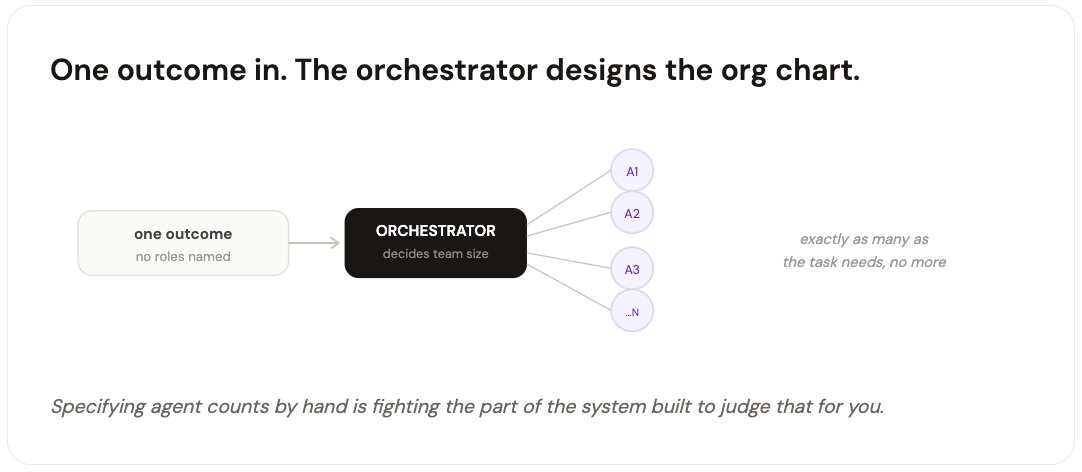
The orchestrator designs the sub-agents itself. Specifying them yourself fights the system.
the trigger prompt
Agent Swarm has no predefined roles. Give it one task, and an orchestrator decides how it splits and how many sub-agents the job needs, without you defining a single role. If you find yourself specifying "use 20 agents" or naming roles by hand, you're doing the orchestrator's job for it, and probably doing it worse.
OUTCOME-SHAPED, NOT TEAM-SHAPED
"Check all 80 open listings in [source] against these 5
criteria. Flag matches, note near-misses, and give me one
ranked table with reasoning for each flagged listing."

# no agent count specified, no roles named
# the orchestrator decides the shape from the outcome alone
✓ Describe what you want back. Let the orchestrator decide how many hands it takes.
3. Run It Manually Once Before You Automate It
Kimi's own advice: verify the wording and the result before you trust a schedule to it.
the dry run
Before wiring anything to a timer, run the exact prompt once in a normal conversation. This is Kimi's own recommended practice, not an extra precaution: confirm the wording is clear and the output matches what you actually wanted. A swarm that runs wide across dozens of sources is expensive to get wrong twice, catch the ambiguity now, while you're watching, not at 3 AM when nobody is.
✓ One manual test catches the ambiguity a schedule would repeat forever

4. Wrap It in a Scheduled Task
A native trigger, in the cloud, no client required to stay open.
the trigger
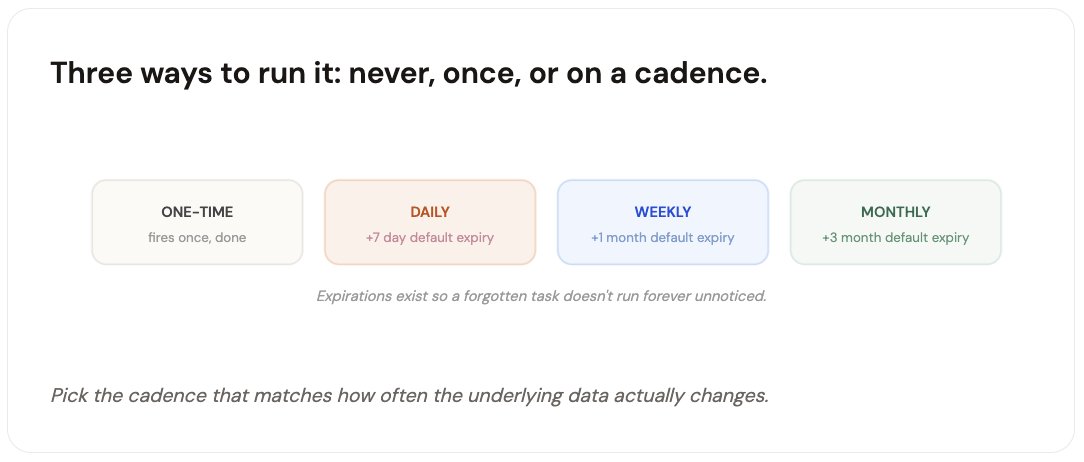
Scheduled Tasks are a real, shipped Kimi feature: a fixed prompt that runs automatically at a time you set, daily, weekly, monthly, or once. Create one from the sidebar, or describe the cadence in a normal conversation and Kimi drafts the title, schedule, and content for you. Tasks created this way run in the cloud, you don't need to keep a browser tab or the app open for them to fire.
KIMI'S OWN TEMPLATE FOR A GOOD TASK PROMPT
At [time], do [task], output as [format], and follow
[constraints].

# example: "Every Monday at 8am, run the swarm check on
# new listings, output as a ranked table, keep it under 200
# words per flagged item, English only."
✓ The task now fires on its own, without you opening anything to start it
5. Check the Result Without Having to Chase It
Every run drops a notification and a conversation you can pick up from.
the handoff
Each time the scheduled swarm fires, it creates an unread notification and a full result conversation, not just a buried log line. Read status syncs across web and mobile, so the first real touchpoint of your day can be checking that notification instead of remembering to open a chat and re-trigger everything by hand.
You're not locked out of it once it's automated, either. After a run, you can keep asking follow-up questions in that same result conversation, and switch models or invoke Skills there if the task needs a deeper look.
✓ You wake up to a notification and a result, not a chat you have to remember to check

6. Close the Memory Gap Yourself
Kimi doesn't ship native cross-run memory. Here's the honest workaround.
the honest gap
This is the part most breathless "self-improving agent" content skips. Kimi K3 can sustain long, multi-hour sessions, but that's session memory, not memory across separate scheduled runs. A recurring swarm task doesn't automatically remember what last week's run flagged, learned, or got wrong, that gap is real and acknowledged across the ecosystem, which is exactly why third-party memory layers like Mem0 exist to plug it.
The low-effort fix that doesn't require new infrastructure: make the task prompt itself carry memory forward. Have each run write a short summary at the end, and paste that summary into the next scheduled prompt as context.
A MANUAL MEMORY LOOP, NO EXTRA TOOLING
"...After the check, write a 3-line summary: what changed
since last time, what's still pending, and any correction to
how you're screening. I'll paste this into next week's run."

# not automatic, but it's a real, working substitute
# until native cross-run memory ships
✓ The swarm doesn't remember on its own yet. You can still make it carry context forward

7. Watch the Quota, Not Just the Result
Active scheduled tasks are capped by plan. Know your ceiling before you build ten of these.
the ceiling
There's no limit on how many scheduled tasks you create, but there is a limit on how many can be active at once, and it scales with your plan. Free accounts get 2 active tasks; Go gets 6; Pro gets 15; Max gets 20; Ultra gets 25. Cross the limit and a new task saves as inactive instead of failing loudly, so check your active count before assuming a new schedule actually turned on.
One more real cost to plan for:Agent Swarm tasks consume meaningfully more than a single-agent task, several times as much, scaling with how many sub-agents actually get dispatched. A self-running swarm on a daily cadence adds up fast, budget for it like a recurring cost, not a one-time experiment.
✓ Know your active-task ceiling and your per-run cost before you scale this up

The honest takeaway: Everything in this build ships today: Agent Swarm's orchestrator, Scheduled Tasks' cloud-based cadence, the notification handoff, the plan-based quotas. The one thing that doesn't ship yet is cross-run memory, and pretending otherwise would set up whatever you build to quietly disappoint you around week three. Build on what's real, work around what isn't, and this actually runs itself.