Grok Build will rewrite how you use your laptop -A practical guide to your own Autonomous Employee

Grok Build: What It’s Actually For

Most people underestimate it by an order of magnitude.
Ask someone what an AI coding agent is for, and they’ll probably tell you it builds apps.
That’s true and it may be the least interesting thing about it.
The much bigger opportunity is hidden in all the small, annoying tasks nobody writes about: the ten minutes lost converting a file, the twenty minutes spent hunting for a setting, the half hour wasted renaming photos, or the forty minutes reading old forum posts because your headphones are connected but the sound is still coming from your laptop.
None of these tasks is difficult. But they keep coming back, every day, forever. Those are simply you don't need to do
Grok Build is an agent that lives in your terminal, sees your files, runs commands on your machine, and handles that work for you. It launched in beta on May 25, 2026, and has shipped updates at an extraordinary pace since then...more than a hundred releases in roughly ten weeks.
This guide goes beyond explaining what Grok Build is. It shows you how it works, how to install it, and how to use it in your everyday routine.
You’ll find practical tasks you can hand it today, exact examples of how to prompt it, and realistic estimates of how much time those workflows can save.
You do not need to be a programmer. You only need to describe the outcome you want.
The example that made it click
I gave Grok Build a SpaceX video posted on 𝕏 and asked it to pull the clearest frames and turn them into a clean collage.
It downloaded the video, extracted frames, judged which ones were sharpest and best composed, cropped them, arranged a layout, and produced the finished collage.
I described the result. It did the process. I worked on something else.
Here's what that actually involved, because the mechanics matter more than the magic:
By hand that's thirty to forty-five minutes: find a downloader, scrub the video, screenshot, open an editor, crop each one, lay them out, export. Described in one sentence, it's about three minutes of waiting.
That's the whole pattern. Describe the result. Delegate the process.
What it actually is
Grok Build has no secret access to your computer. It works exactly the way you would: it reads files, and it types commands into a terminal.
That's the entire trick and it's why it's so broadly useful. Anything your computer can do from a command, Grok Build can do for you. It knows the commands. You don't have to.
Its tools are actually this simple:
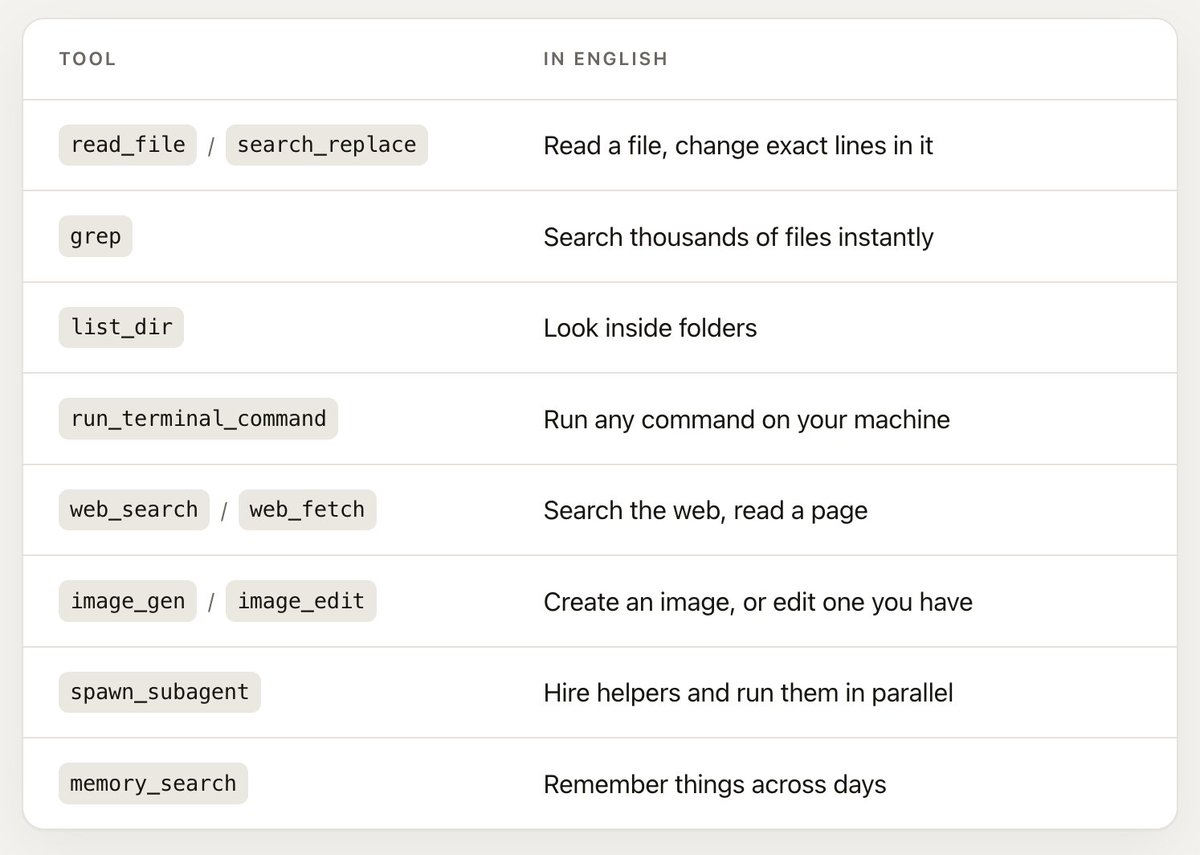
Two things about that list are easy to miss and worth more than everything else combined.
It can see. When it reads an image, PDF, or PowerPoint, the contents go to the model as actual vision — not a filename, not a guess. Hand it forty screenshots of receipts and ask for a spreadsheet, and it works, because it is genuinely looking at them.
It can install things. If the right tool for your job isn't on your machine, it finds it, asks permission, installs it, and uses it. You are not limited to what's already there.
It runs on Grok 4.5 with a 500,000-token context window — large enough to hold an enormous amount of your work at once.
An operator that lives in your computer, working strictly inside the permissions you give it.
Install (about 60 seconds)
Grok Build is the terminal AI coding agent from SpaceXAI. The CLI is open source (Apache 2.0), free to install, and available to try for free. Open a project folder and you’re in.
Open a terminal
Install
macOS / Linux
curl -fsSL https://x.ai/cli/install.sh | bash
Windows (PowerShell)
irm https://x.ai/cli/install.ps1 | iex
Check it, and keep it current
grok --version
grok update
Start Grok Build in a project
Grok Build works from the folder you’re standing in. That directory is the workspace: sessions, project rules, and default work are scoped there. cd into the project you care about before you launch.
cd ~/projects/my-app # use your real project path
grok
(You can also pass the folder explicitly: grok --cwd ~/projects/my-app.)
On first launch, your browser opens once so you can sign in at grok.com. Credentials are stored under ~/.grok/ and refresh automatically after that.
The one rule: start Grok Build in the right folder. That folder is the workspace — not a sealed box around your whole machine. Without a sandbox, Grok can still touch other paths if you approve an action; optional sandbox profiles can tighten that later.
Your first three prompts:
What's in this folder? Explain it simply.
/tutorial
/doctor
/tutorial is a nine-topic tour, about thirty seconds each. /doctor checks terminal, colour, clipboard, input, notifications, and related setup. It shows what it found; run /doctor fix for the automatic repairs it can apply.
Permissions, in one minute
You've just installed something that runs commands on your computer. Here's what stops it doing something stupid.
By default it asks. Before running a command or editing a file, it shows you exactly what it's about to do. You approve or you don't.
Shift+Tab cycles four modes:
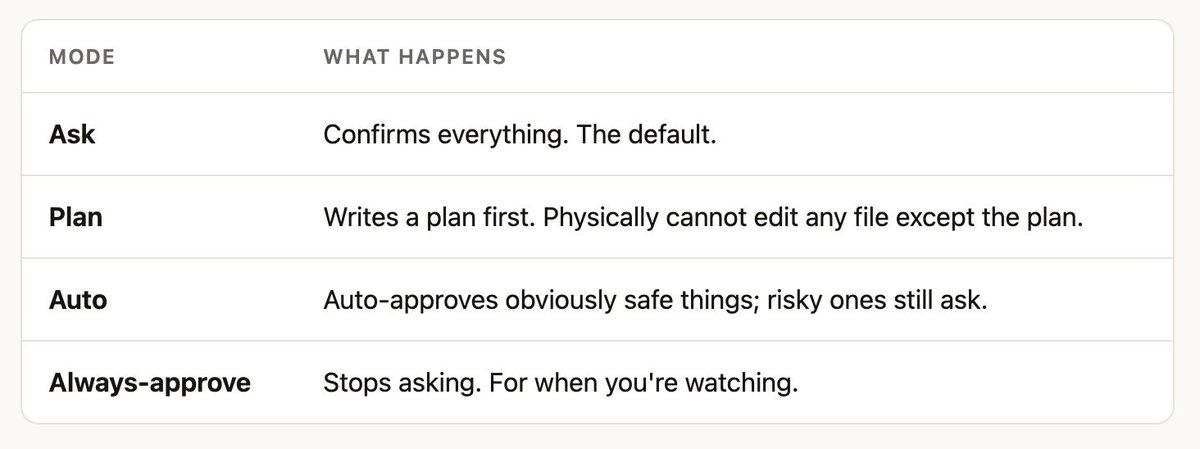
Shift+Tab cycles Ask → Plan → Always-approve. Switch to Auto with /auto (or settings). Ctrl+O toggles Always-approve.
You can ban things permanently. In ~/.grok/config.toml:
[permission]
rules = [
{ action = "deny", tool = "bash", pattern = "rm -rf *" },
]
Deny always beats allow. Always.
You can undo everything./rewind — or Esc twice on an empty prompt — lists a restore point for every prompt you've sent. Pick one and it puts your files back exactly as they were at that moment, and rewinds the conversation to match. Not "undo the last edit." The whole session, files included.
You can lock it in a box.grok --sandbox workspace uses your operating system's own enforcement (Seatbelt on macOS, Landlock on Linux): it can read broadly, but writes are limited to the folder you're working in, plus ~/.grok/ and temp dirs. There are stricter profiles — read-only and strict — for when you're poking at something you don't trust. Sandbox is off by default.
That's the safety story. Ask by default, ban what you want, undo anything, sandbox if you like.
The playbook
This is the part that matters. Everything below is a real thing you can type today.
Start Grok in the relevant folder first. And note the habit worth building immediately: on anything touching more than a couple of files, add "show me the plan first."
Video and audio
Your machine can do almost all of this already through ffmpeg. Nobody remembers the flags. That's the entire reason people upload private files to sketchy free converter sites.
Pull the audio out of this lecture.mp4 as an m4a so I can listen in the car.
Grab the video from this X post and save it here.
Take the sharpest frames from this clip and make me a 3x3 collage.
Add this music track under the video, fade it in over 2 seconds, and duck it when someone speaks.
Trim the first 12 seconds, mute the audio, and export it vertical for stories.
This screen recording is 400MB. Compress it so I can email it without it looking terrible.
Make a 10-second highlight loop from the best part of this and export as a GIF.
Every video in this folder — strip the audio into a separate folder, keep filenames matched.
Speed this up 2x, keep the audio pitch normal.
Burn these subtitles into the video so they show on phones.
Images
Convert every .jpg here to .png and put them in a folder called png.
These 200 iPhone HEIC photos won't open on Windows. Convert to JPEG, keep the dates.
Resize everything so the longest side is 1600px. Don't touch the originals.
Crop all of these to square, centred on the subject.
Strip location data out of these before I send them.
This logo has a white background. Make it transparent.
Take this product photo and put it on a clean studio background.
Make me a simple icon set for these six things, same style.
Those last two use image_gen and image_edit — actual generation and editing, not just format conversion. /imagine and /imagine-video do the same from a command, and /imagine-video plans shots, generates source images, then animates them.
Finding things your search bar can't
This is the widest gap of all. Your operating system matches filenames and, if you're lucky, some text. It does not understand meaning.
Somewhere in Documents there's a PDF about a rental agreement from last year. Find it.
Which of these 60 invoices are unpaid? List them with amounts and dates.
I have four versions of my CV. Which is newest, and what's different between them?
Search these 300 meeting notes for anywhere someone committed to a deadline. Give me the deadlines.
Find everything I touched last week that mentions the Henderson project.
Which of these contracts have an auto-renewal clause?
No search tool on your computer can do the last one. This one reads, understands, and answers.
Taming a folder that's out of control
My Downloads is a disaster. Show me what's in there by type and size. Don't touch anything yet.
Now move PDFs to Documents/PDFs, images to Pictures/Inbox, installers to a folder called Installers.
Find actual duplicates — same content, not just same name. List them. Don't delete.
Rename these photos to YYYY-MM-DD-description based on when they were taken.
These 400 files are named IMG_2847. Rename them by what's actually in the picture.
Anything in here older than a year and never opened — move it to an Archive folder.
What's the biggest thing on my drive? Top 20 folders by size.
That "rename by what's actually in the picture" one only works because it can see. It's the kind of task that is otherwise simply never done.
Spreadsheets and data
Clean this CSV: fix the date formats, kill blank rows, flag anything that looks wrong.
Merge these five spreadsheets. They have different column names for the same things — work it out.
Here are 40 screenshots of receipts. Read them and build me a spreadsheet with date, vendor, amount.
Split this master sheet into one file per region.
Find every row where the numbers don't add up and tell me why.
Build me a dashboard from this data I can open in a browser — spend by month, top five categories.
That last one is worth pausing on. It doesn't hand you a chart image — it writes a real HTML page you can open, keep, and re-run when the data changes.
Fixing things that break
This is the category people never think to try, and it's the one that saves the most frustration.
The usual path when something breaks: search the problem, read four forum threads from 2019, try three fixes that don't apply to your machine, give up. Forty minutes, no result.
The better path is to describe the symptom:
My Bluetooth headphones connect but sound still comes out of the laptop speakers. Work out why and fix it.
It inspects the actual audio configuration on your machine, checks which output device is selected, looks for the usual culprits — a stuck audio daemon, a device claiming the wrong profile, a stale pairing — makes the change, and then tests whether the sound actually moved. If it didn't, it tries the next thing.
That last part is the difference. It doesn't hand you a suggestion. It closes the loop.
My external monitor runs at 60Hz but supports 144Hz. Fix it.
My laptop is running hot. Find what's using the CPU and tell me what's safe to quit.
Why is my WiFi slow right now? Actually check, don't guess.
Something is using 40GB and I don't know what. Investigate and explain simply.
Microphone isn't working in calls. Diagnose it.
What's launching at startup? Turn off what I don't need.
Set screenshots to save into a Screenshots folder instead of my desktop.
Turn off every notification except Messages and Calendar.
Be aware of how it does this. For refresh rate on macOS there's no built-in command, so it finds the right tool for the job, tells you it needs to install it, and asks. You see and approve each step. It's honest about what it's doing rather than pretending to have magic access — and honestly, that's better.
Installing and setting up software
Install ffmpeg and yt-dlp.
I need something to open RAR files. Find a good free option, install it, test it.
Set up Python properly on this machine so it stops fighting me.
Install Docker and confirm it actually runs.
My Node install is broken and I don't know why. Fix it.
Get my terminal set up nicely — sensible colours, better history, autocomplete.
Skipping the download page, the wrong installer, and the PATH problem is worth an hour on its own.
Documents
Grok Build ships with built-in skills for PDF, DOCX and PPTX, so it produces real Word documents, PowerPoint decks and PDFs.
Read all 12 of these PDFs and give me one page on what they collectively say.
Extract every table from this PDF into a CSV.
Merge these PDFs in date order and add page numbers.
Turn these bullet points into a 10-slide deck.
Compare these two contract versions and tell me exactly what changed.
Rewrite this in plain English. Keep every fact, cut the corporate padding.
This 80-page report — what does it say about pricing? Quote the relevant bits.
Automating the thing you do every week
Anything you do repeatedly, describe once and never do again.
Write me a script that backs up these three folders to my external drive, and run it.
Every Monday, check which of my subscriptions renewed and put it in a note.
Watch my Downloads folder — when a new invoice PDF lands, rename it properly and file it.
Take these 30 photos, resize, watermark, and export web versions. Then do that again whenever I ask.
The last one is the important pattern: get it right once, then make it a permanent command. More on that shortly.
The time math
Honest estimates of the manual path — not benchmarks, just what these actually cost when you do them yourself.
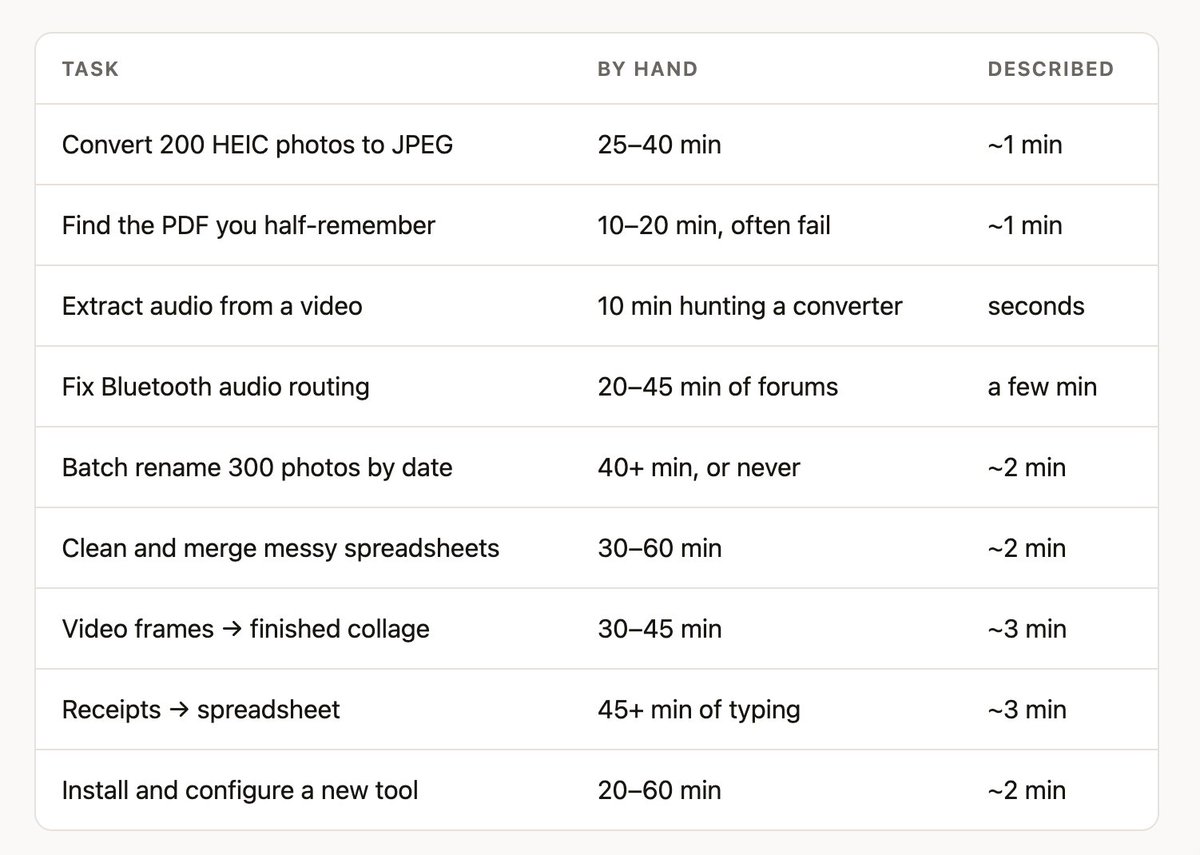
Individually, none of these is a crisis. That's exactly the point. They're small enough that you absorb them, and they add up to hours a week that never show up anywhere.
And the real number isn't the minutes. It's the tasks you currently just don't do because they're too tedious to start.
Configure it once
This is the highest-leverage thing in this whole guide and it takes two minutes.
Create a file called AGENTS.md in a folder — or in ~/.grok/ to apply everywhere — and Grok reads it at the start of every session, forever.
# How I like things done
- Show me a plan before deleting or moving more than 5 files.
- Never write anything into Desktop or Downloads.
- When a task produces a file, open it when you're done so I don't forget it exists.
- Finished images and video go in ~/Pictures/Output.
- Explain things in plain English. No jargon.
- Tell me what you're about to install before you install it.
That third line is the one I'd argue for hardest. Agents finish work and leave it sitting in a folder you forget to check. Tell it to open the result and the loop actually closes — the collage appears on screen when it's done.
Rules stack: ~/.grok/ applies globally, then every folder from your project root down, with deeper files winning. So "explain simply" everywhere, and specific rules per project.
For a one-off, skip the file:
grok --rules "Explain everything like I'm not technical."
And to see what it actually loaded:
grok inspect
Configure the workflow once, and it keeps working the way you prefer. That's the difference between a tool you use and a tool that's shaped around you.
Turn repeated work into one word
A skill is a folder with instructions in it. Any skill you mark user-invocable becomes a slash command automatically.
/create-skill
It interviews you and writes it to disk. Now the photo-export routine you tuned last month is /export-photos, forever.
This is the compounding part. Six months in you're not using a general assistant any more — you're using one shaped exactly around how you work.
Useful ones ship built in:
Plus /pdf, /docx, /pptx, /imagine, /create-workflow, and resume helpers for Claude, Codex and Cursor.
Six small things worth knowing
@ attaches a file. Type @ and a fuzzy picker opens. @notes.md attaches a file, @notes.md:10-50 attaches specific lines, @src/ browses a folder. This is how you point it at something precisely instead of describing where it is.
Ctrl+Enter interrupts mid-task. Watching it head the wrong way? Correct it while it's working instead of waiting for it to finish being wrong.
For a side question that shouldn't stop the work, use /btw instead. "/btw what does that error actually mean?"
/effort dials reasoning up or down — low, medium, high, and xhigh on models that support it. High for genuinely hard problems, low when you want it fast.
! gives you a plain terminal for a moment, with proper tab completion, without leaving the session.
It draws diagrams. Ask it to explain how something works as a flowchart and you get an actual rendered diagram in the terminal, not ASCII art. Good for understanding a system you've inherited.
When the job is bigger
Everything so far is single tasks. Here's what happens when the work is large.
Plan mode — think before touching
/plan reorganise my entire photo library by year and event
It explores, thinks, and writes a plan — and cannot edit any file except the plan itself, regardless of your permission mode. Then a preview opens: a approve, s request changes, c comment on a specific line, q quit. Nothing happens until you press a.
Ten seconds of reading saves an hour of undoing.
Subagents — it hires helpers
For big jobs it spawns child sessions, each with its own separate context, running in parallel and reporting back. Three types: general-purpose, explore (read and search only — cannot edit anything), and plan.
explore is the underrated one: research with a hard guarantee nothing gets modified.
Worktrees — the one that sounds technical and isn't
Problem: three helpers editing the same folder overwrite each other.<br>Solution: give each one its own complete copy.
That's a worktree. Grok makes a real isolated copy of your project, the agent works entirely inside it, your actual folder is never touched. When it's done you look at what changed and decide whether to keep it.
grok -w # start in a fresh copy
grok --worktree=feat "rebuild the header" # named copy, with a prompt
Watch the =. grok -w "do the thing" treats "do the thing" as the copy's name. Use --worktree=name when passing a prompt too.
Needs your folder to be a git repository. grok worktree list shows them, grok worktree gc --max-age 7d cleans up.
Why you'd care: it makes "try three approaches at once and keep the best" a safe, real option.
The Agent Dashboard — mission control
Once you have more than one agent running, you need to see them all:
grok dashboard
Or Ctrl+\ from inside any session.
Every session on one screen, grouped live by state — Needs input · Working · Idle · Completed · Failed — with anything waiting on you pulled to the top. Subagents fold under whoever launched them.
Select a row to peek at its output without leaving. Type to reply. If it's asking permission, the options appear inline and you answer with number keys. Enter takes over the full session. Ctrl+W sends new agents into isolated copies. Closing the dashboard leaves everything running.
Things that run without you
/loop repeats a prompt on a schedule:
/loop 30m check if the backup finished and tell me if it failed
Minimum 60 seconds, expires after 7 days, up to 50 at once.
Monitors watch a live stream and notify you: "watch the deploy logs and tell me the moment anything errors."
Ctrl+G opens the tasks pane. Ctrl+B pushes a running command to the background. Type while it works — prompts queue rather than getting dropped.
/goal — set an objective and walk away
/goal Migrate my photo archive to the new folder structure
/goal status
It works across multiple rounds. The part that matters: it only marks a goal complete after an independent review confirms the result. If that review can't reproduce it, the goal stays open and tells you the specific gaps. It doesn't get to declare its own victory.
/deep-research — genuinely different
/deep-research What's actually known about creatine and sleep quality?
Not a search with extra steps:
Step 5 is the point. Most research tools give you a confident answer and hide the gaps. This one tells you explicitly what it could not confirm.
It returns immediately — the finished report drops into your conversation on its own.
Voice
Press Ctrl+Space (or F8) and talk. Hold-to-talk by default; set voice_capture_mode = "toggle" for press-once. You can edit dictated text without closing the mic.
If it records nothing on a Mac it's the microphone permission belonging to your terminal app: System Settings → Privacy & Security → Microphone, enable your terminal, restart it.
The reason to bother: long, rambling, detailed prompts are better prompts, and nobody types those. Everybody says them.
Memory
Off by default. Turn it on in ~/.grok/config.toml:
[memory]
enabled = true
Then /remember I organise photos by year then event, never by camera. Also /memory to browse, /flush to save the session now, /dream to consolidate scattered notes into organised topics.
Nothing is ever lost
Every conversation saves automatically. grok -c continues the last one. /resume picks from history. /fork branches into a parallel session — about to try something risky? Fork first, keep whichever timeline works. /compact frees up space, /export writes the transcript out, grok sessions search <query> searches everything you've ever done.
Connect it to everything
/marketplace opens a browser of plugins that bundle skills and integrations behind one install. The official xAI marketplace currently carries seventeen:
Deploy — Vercel · Railway · Cloudflare
Databases — Neon · MongoDB
Payments — Stripe
Monitoring — Sentry · Axiom
Design — Figma
Browser — Chrome DevTools
Search — Exa · Tavily · Firecrawl · TinyFish
Craft — Superpowers
Also — Base44 · Wix
Grok also reads Claude Code marketplaces, so GitHub, GitLab, Linear, Asana, Discord, Telegram, Playwright, Terraform and more install with no extra setup.
Beyond that, MCP connects it to basically anything:
grok mcp add --transport http linear https://mcp.linear.app/mcp
Which makes the full arc real:
Build me a landing page for my photography business with a contact form.
Add Stripe checkout so people can book a session.
Deploy it to Vercel and give me the URL.
Set up Sentry so I know when it breaks.
Four sentences, four real plugins. You still make every decision about whether it's right — that's the job. But the distance between an idea and a live thing collapses.
Coming from another tool
If you use Claude Code, Cursor or Codex, this is near zero effort. Grok reads their marketplaces, plugins, skills, MCP servers, agents, hooks and instruction files (CLAUDE.md and friends) with no configuration at all — and it can resume your old sessions. The session picker lists recent Claude Code, Codex and Cursor conversations.
/import-claude
On the welcome screen: Ctrl+I imports Claude settings; Ctrl+U continues a recent Claude Code session when one is available.
The session picker also lists recent Claude Code, Codex, and Cursor conversations.
You can try it without dismantling anything.
For the technical
Short, because it isn't the point.
Headless.grok -p "prompt" runs once and exits. --output-format json for machine-readable, --json-schema '{...}' to constrain output to a validated shape. Read the session ID back and pass it to -r to chain multi-step automation.
Hooks. Run a command on lifecycle events — PreToolUse is the only one that can block something before it happens. Personal hooks in ~/.grok/hooks/, project hooks require explicit trust.
Editors and apps.grok agent stdio runs it over ACP for IDE integration; grok agent serve runs it as a WebSocket server.
Custom models. Point [model.*] at any OpenAI-compatible endpoint.
On the API.grok-4.5 powers the CLI and is available directly, 500k context. There's also grok-build-0.1, a purpose-built agentic coding model, 256k context at $1.00/M in and $2.00/M out.
Your data./privacy sets retention and training. Teams can enable Zero Data Retention. Usage telemetry can go to your own OpenTelemetry collector with nothing flowing through xAI — off by default, content-free by default, and bash command text is never exported at all.
Cheat sheet
Install · curl -fsSL https://x.ai/cli/install.sh | bash — Windows: irm https://x.ai/cli/install.ps1 | iex
Launch · grok · grok "prompt" · grok -c continue · grok -w isolated copy · grok dashboard
Daily commands · /plan · /rewind · /fork · /loop · /goal · /deep-research · /imagine · /remember · /tutorial · /doctor · /docs · /usage · /copy · /context
Keys · Shift+Tab mode (Ask / Plan / Always-approve) · /auto · Esc Esc rewind · Ctrl+Space voice · Ctrl+\ dashboard · Ctrl+G tasks · Ctrl+Enter send-now mid-task · Ctrl+. all shortcuts · @ attach a file · ! plain shell
Files · AGENTS.md your rules · ~/.grok/config.toml settings · ~/.grok/skills/ your commands
Open source · github.com/xai-org/grok-build · Free to try · x.ai/cli
The part that actually matters
The bottleneck was never your computer. It was that using it well required knowing hundreds of small arbitrary things — which menu, which flag, which format, which converter. Nobody knows all of it. Everybody loses hours to the gap.
Grok Build closes that gap by making the interface language. You describe the outcome. It handles the arbitrary parts.
Three habits get you most of the value:
Say the outcome, not the steps. Not "run ffmpeg with these flags." Say "pull the audio out so I can listen in the car." Describing what you want is a skill you already have.
Ask for the plan first. On anything touching more than a couple of files: "show me the plan first." And when you skip it and it goes wrong — /rewind.
Write down how you like things done. Two minutes in an AGENTS.md — including open the result when you're finished — and it stops being a tool you operate and starts being one that works the way you already do.
The boring work was never the point of owning a computer. Now it doesn't have to be your job.
Grok Build is in beta and ships constantly. Run /changelog to see what landed since you last looked.
Docs: docs.x.ai/build/overview
Web changelog: x.ai/build/changelog
Open source: https://github.com/xai-org/grok-build
· Free to try: https://x.ai/cli
