How to connect Claude to your apps:

I mostly open Claude now.

Because my Claude is connected to everything else: my Gmail (email), my Slack (team channels), my Granola (meeting notes). It’s called Claude Connectors.

Claude has over 200 connectors. But you’re probably using none of them, and this newsletter is here to help you get started.
Two things before we start:
I - How to connect your app to Claude.
A Connector is a 1-click bridge between Claude and an app you already pay for.
Here’s how to connect your app to Claude:


What changes when you turn one on?
Let’s see some examples:


II - My 8 favorite Claude connectors.
Now here are my 9 favorite Claude Connectors I (actually) use every week.
1. Granola. For my meeting transcripts.
Granola is my notetaker. I think it’s the simplest/most complete one out there.
When I join a meeting (on Zoom, Teams, Meet), Granola automatically captures the entire transcript and stores it on my computer inside its app.
This is a typical prompt I use inside Claude, with Granola:
"Pull my last meeting from Granola. Summarize in 5 bullets.
Then list every action item assigned to me, with deadlines.
Then flag the 2-5 blockers I might have to complete some items."

Pro tip: Combine Granola’s context with everything else. For example, when I’m negotiating a contract, I ask Claude to read Granola+Slack+Gmail. Combine the connectors together!
2. HubSpot/Salesforce. For lead generation.
Most people use HubSpot or Salesforce to manage their leads (in a CRM).
Prompt I use inside Claude:
"Read my HubSpot pipeline.
List every deal in stage "Proposal Sent" that hasn't moved in 7+ days.
For each: write a follow-up email I can send today.
Tone: direct, French-blunt-warm. No "just checking in.""

Pro tip: Stop using HubSpot/Salesforce only as a CRM. Use it as a research input. Ask Claude, “Based on my last 5 closed-won deals, what’s the common thread?”
3. Notion. For my team’s knowledge base.
I use Notion for our content calendars and knowledge base. Like, for example, my social media posts, all of our standard procedures on how we do things…
Prompt I use with Notion:
"Go to Notion, NEW Post Calendar. Extract the content from May 12, 2026 (Design brief, Caption). Create 2 new ones using the same ideas and techniques."
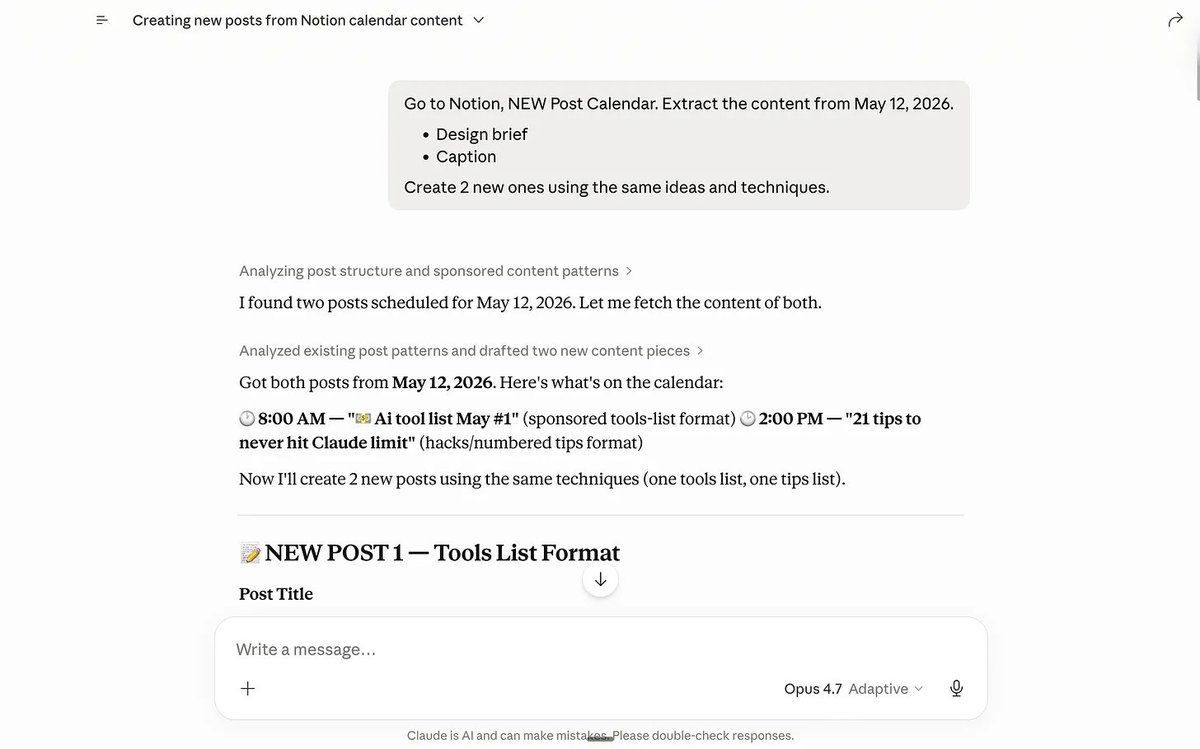
Worth noticing, I am a small company, but most big ones use Microsoft or Atlassian with Jira, Confluence... Needless to say, Claude can connect to all of them. But I haven’t tried. So go & do it and let me know if it’s good :)
4. Microsoft 365. Because you probably have to use it.
One toggle. 4 apps: Teams, Outlook, Calendar, OneDrive.

I consult SME businesses in the US, generating at least $100 million per year. I think most, if not all, of them were using Microsoft. You’re probably one of them.
This is a typical prompt to call the entire Microsoft suite:
"Read my Outlook + Calendar for next Monday.
List every meeting where I have no prep notes yet.
For each: pull the relevant Teams thread or OneDrive doc.
Output a 1-page brief per meeting."
Pro tip: It works even better when the entire company adopts it. Because then people adopt new ways of collaborating/communicating. They know AI can use it, so they start being clearer everywhere. This is the new way of working.
5. Slack. Because I don’t use Microsoft Teams.
I use Slack, not Teams, to talk with my teams.
A typical prompt I use :
"Read #tathastu, #team-lead, #gpc-consulting, #circle-studio from the last 48 hours. Surface the 3 things I need to react to. Skip jokes, GIFs, standup updates."

6. Google Drive. Because I know we all use Google Drive.
I use Google Docs & Google Sheets heavily. So I have to connect Claude to my Drive. But the way I use it with Claude here is a little different.


7. Gamma. To make on-brand slides in seconds.
I use Gamma for all of my slides. It’s the fastest/cheapest/easiest. Hard to beat.
A typical Gamma prompt:
"Go to Gamma. Create a [NUMBER]-slide deck on [TOPIC] for [AUDIENCE].
Goal: [What you want them to do or understand].
Cover: [List 5-8 key points or sections].
Tone: [confident / data-driven / concise].
Make it visual, clean, and one idea per slide."


8. Gmail. The most obvious win.
I save the most known for last.
What it replaces: searching your inbox, finding the wrong email, searching again.
It also works for Outlook emails, obviously. A prompt you’d like to try:
"Read my Gmail from this week.
Group every email into 3 buckets:
1. Needs my reply today.
2. Can wait until Friday.
3. Newsletter / FYI / can ignore.
Output: 3 lists. No commentary."
Non-obvious tip: ask Claude to draft the replies as drafts in Gmail, not in the chat. Just add the prompt: “Save the 5 replies as drafts in my Gmail.”
If you only turn on 3 connectors today, pick Granola, Gmail/Outlook, and Slack/Teams (depending on what you use internally). This trio compounds.
III. The entire list of Claude Connectors.
The directory is 200+ Connectors and growing.

If you want to find all of them directly inside your Claude, do this:


IV. When NOT to use a Connector.
3 rules.
1. Don’t leave them all on by default.
Connectors burn tokens before you type. Every Connector loaded is context Claude has to scan.
Turn them on per chat. Off per chat. Treat the toggle bar like a kitchen tap.
If you need more tips on avoiding wasting Claude’s tokens, click here.
2. Don’t use Connectors for creative work.
When you’re drafting a LinkedIn post or writing a script, you want a clean room.
Slack noise, Gmail noise, Notion noise pollutes the output. My default writing chat: every Connector off. Always.
3. Don’t grant write access until you trust the read flow.
Read-only first. Watch how Claude uses it for a week.
Then grant write. Most data accidents happen on day one when someone enables a Connector with full write access and asks Claude to “clean up my Drive.”
V. Build your own connector (for devs).
This section is very technical. 99% of you don’t need it. So skip it.
A Connector is just an MCP server with a public URL.
You won’t create one. But your tech team could!
Or ask me to do it for you :) I have a consulting firm in NYC.
You can ship one in maybe 3-4 hours if you’ve never touched code. 15 minutes if you have. You’ll need:
Step 1. Open Claude Code and paste this prompt:
"Build me an MCP server in Python using FastMCP.
One tool: get_<thing>(args).
Use Streamable HTTP transport.
Deploy target: Cloudflare Workers.
Output:
1. The full server code.
2. The deploy command.
3. The URL pattern I'll paste into Claude Settings."
Replace <thing> with the action you want. (”get_latest_email_from_sender”, “get_open_deals_above_amount”, “get_revenue_for_month”.)
Step 2. Run the deploy command Claude gave you.
You’ll get a public URL ending in your-server.workers.dev/mcp.
The /mcp path is required.
Step 3. Add it to Claude.
Settings > Connectors > Customize > Add custom connector.


Paste the URL with /mcp at the end. Name it. Save.
Open a new chat. Toggle the Connector on. Test the tool.
3 things that break the first time:
Wrap your own internal tool. Your private database. Your team wiki. The spreadsheet you’ve kept for 3 years. The Connector is a permission layer between Claude and any system you control.
Where to start.
You won’t turn on all 9 tonight. Don’t try.
Pick 3.
My favorite stack of connectors is:
They give the needed context to Claude so I can do better work.
PS: I made this website to help people start with Claude → claude101.com.
A message from the author, Ruben.
This article exists because 79,000+ people decided AI is too important to leave aside. Not only that, but they shared it around them. They understand they are the sum of the 5 people around them. So better have them using AI.
If this helped you — or if it’ll help someone you know — forward it to them. That’s how this grew. Just readers like you sending it to people like them.
And if you're new here, follow me on X →@rubenhassid (also free!)