Give me 2 minutes and I'll show you how to organize your bookmarks...

Tiago Forte@fortelabs
12 views
Mar 30, 2024
~2 min read
Advertisement
1
Give me 2 minutes and I'll show you how to organize your bookmarks with the PARA Method for lightning fast web browsing
2
What’s PARA?
It’s my simple system for organizing virtually any information in your life
Projects: Short-term efforts in work/life with a deadline
Areas: Long-term responsibilities
Resources: Topics/interests
Archive: Inactive items
Key principle = organize by actionability
It’s my simple system for organizing virtually any information in your life
Projects: Short-term efforts in work/life with a deadline
Areas: Long-term responsibilities
Resources: Topics/interests
Archive: Inactive items
Key principle = organize by actionability
3
Here’s my bookmarks bar organized by PARA
Left side: All sites that I’m visiting multiple times per day
Right side: PARA folders + the bookmark search
Finally, I have the links I need readily accessible
Let’s look at how to implement this for yourself in a few simple steps:
Left side: All sites that I’m visiting multiple times per day
Right side: PARA folders + the bookmark search
Finally, I have the links I need readily accessible
Let’s look at how to implement this for yourself in a few simple steps:
4
1: Create your Archive folder & move all your bookmarks in there
In Chrome, go to “View” then click “Always Show Bookmarks Bar”
Create a folder, then drag & drop all your bookmarks into your new Archive folder
Now you can start from a clean slate
In Chrome, go to “View” then click “Always Show Bookmarks Bar”
Create a folder, then drag & drop all your bookmarks into your new Archive folder
Now you can start from a clean slate
5
2: Create your Projects folder and add links to your active projects
Projects folder should contain links you need most at this moment because they’re associated with outcomes you want to achieve
Here’s an example of my Projects folder with a sub-folder for each active project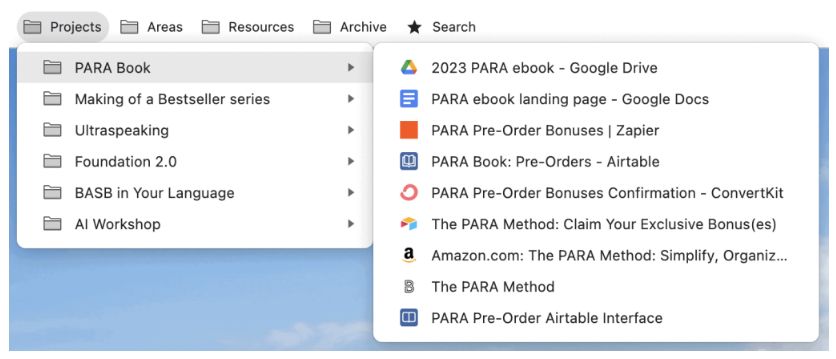
Projects folder should contain links you need most at this moment because they’re associated with outcomes you want to achieve
Here’s an example of my Projects folder with a sub-folder for each active project
6
3: Create your Areas folder
This is everything that needs continuous attention from you - no end date
For me, that includes maintaining our websites, our social media channels, and our weekly newsletter, among others
Here’s what my Areas folder and sub-folders look like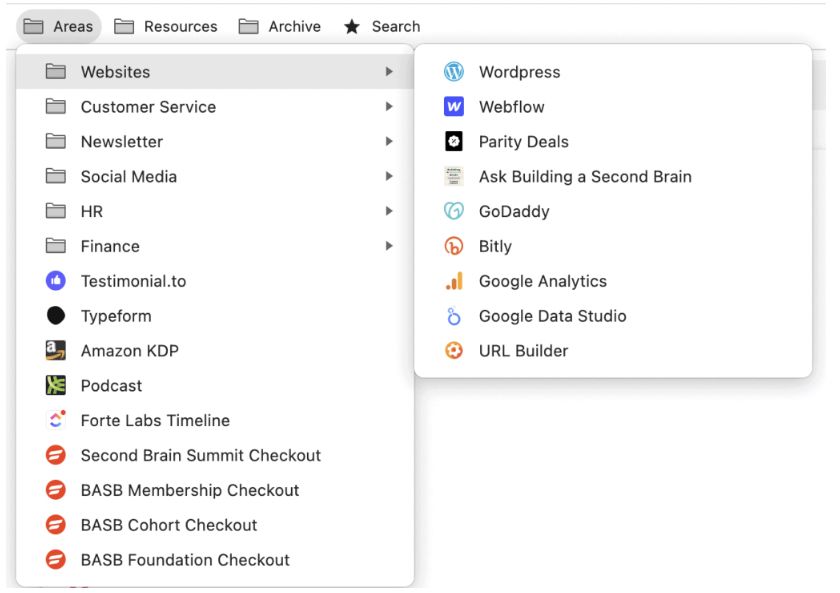
This is everything that needs continuous attention from you - no end date
For me, that includes maintaining our websites, our social media channels, and our weekly newsletter, among others
Here’s what my Areas folder and sub-folders look like
7
4: Create your Resource folder
Your Resource folders contains everything else that’s useful and handy to keep around
It’s a great place to save links to templates, tools + learning resources
This is what my Resource folder and sub-folders look like: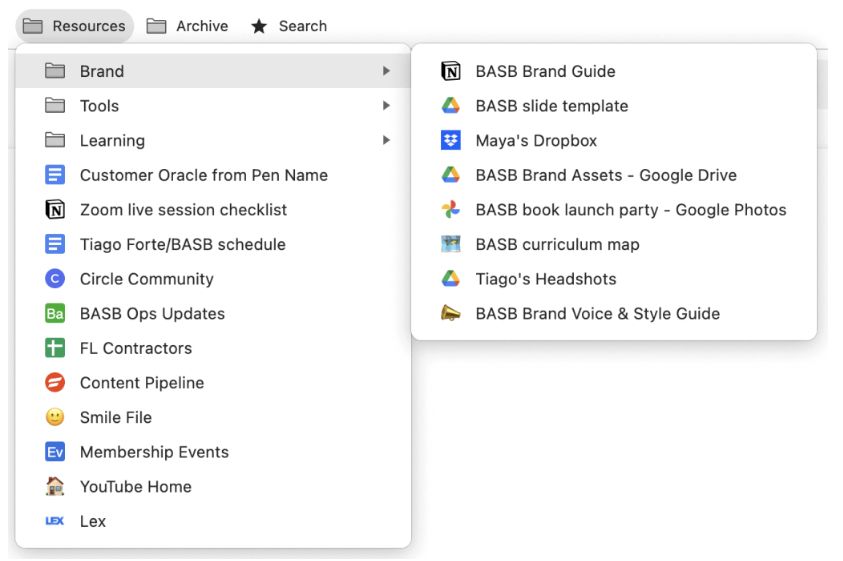
Your Resource folders contains everything else that’s useful and handy to keep around
It’s a great place to save links to templates, tools + learning resources
This is what my Resource folder and sub-folders look like:
8
There are 2 additional upgrades you can make to this system
Find out what they are in the blog: buff.ly/3wY2FUc
Find out what they are in the blog: buff.ly/3wY2FUc
9