50 Obsidian Workflows, Plugins, and Setups That Most Users Don't Know
Most people open Obsidian, write a few notes in the default folder, and never touch a single setting again.

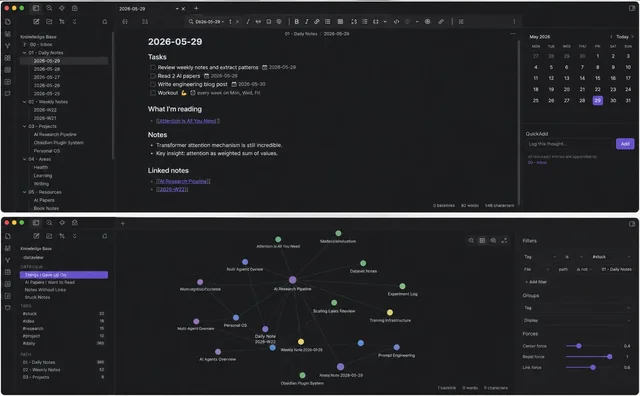
That's not a criticism. The default experience is genuinely fine for casual note-taking. But there's a second version of Obsidian running underneath the one most people use, one with live databases, automated processing, AI integration, and structural patterns that turn a folder of Markdown files into something closer to a personal operating system.
This guide covers fifty of them. Organized into ten categories. Five setups per category. None of this requires you to be technical. All of it requires about ten minutes of setup per item, and a willingness to actually open the plugin settings instead of accepting the defaults.
Category 1: Dataview Workflows That Turn Notes Into Live Databases
Dataview is the single highest-leverage plugin in the entire Obsidian ecosystem, and most users install it, write one basic query, and never go further.
1. The project dashboard query. A single Dataview block that lists every note tagged #project, sorted by priority, with status pulled from frontmatter. One query replaces a manually maintained tracking spreadsheet.
TABLE status, priority, deadline
FROM #project
WHERE status != "complete"
SORT priority DESC
2. The orphan note finder. A query that surfaces every note with zero incoming links, the notes that exist in your vault but that nothing else connects to. Run this monthly and you catch the ideas that got captured and then forgotten.
3. The decision log query. Every decision note, pulled into one table with the date, the assumption it rested on, and the review date. This turns scattered decision notes into an actual auditable history.
4. The content pipeline tracker. For anyone producing regular content, a query showing every draft by stage: idea, outline, draft, published. Replaces a separate content calendar tool entirely.
5. The "stale projects" alert. A query filtered to show only project notes that haven't been modified in 14+ days. The thing that surfaces what you've quietly abandoned before it becomes a six-month-old embarrassment.
Category 2: Templater Automation Most People Never Configure
Templater ships in most "ultimate Obsidian setup" guides as a basic templating tool. Almost nobody uses its actual automation capabilities.
6. Auto-populating daily notes. A template that pulls in yesterday's unfinished tasks automatically using a Templater script, so open items carry forward without you copying anything by hand.
7. Dynamic folder routing. A Templater prompt that asks which project a new note belongs to, then automatically creates the note inside the correct project folder instead of dropping everything into one flat inbox.
8. Auto-generated meeting notes. A template that pulls today's date, prompts for attendees, and pre-fills a structured agenda format, cutting meeting note creation down to filling in three fields.
9. The smart title generator. Templater scripts that auto-generate a filename based on note type and date, so you stop manually typing "2026-06-22-meeting-notes-client-call" every single time.
10. Bulk template application. Running a Templater script across a folder of existing notes to retroactively add frontmatter fields you didn't think to include when you started, instead of manually editing fifty files one at a time.
Category 3: Canvas Workflows for Spatial Thinking
Canvas gets used by most people as a glorified whiteboard. Its actual power is connecting it back into the rest of your vault.
11. The project map canvas. Every note related to a single project, arranged spatially by relationship rather than folder hierarchy, with visual groupings for "active," "blocked," and "reference."
12. The argument mapping canvas. Laying out a complex decision visually: the claim in the center, supporting evidence branching one way, counter-evidence branching the other, with each node linked to the actual source note.
13. The reading map. A canvas per book or course where each major concept gets its own card, connected to show how ideas in chapter 8 actually depend on something introduced in chapter 2.
14. The onboarding canvas. For anyone sharing a vault with a team, a canvas that visually walks a new person through where everything lives, instead of a text-based README nobody reads.
15. The "year at a glance" canvas. Twelve cards, one per month, each linked to that month's key notes and decisions. A spatial alternative to a linear timeline that's much easier to scan.
Category 4: Daily Note Automation
Most people's daily notes are either ignored entirely or treated as a junk drawer. A properly automated daily note becomes the connective tissue of the whole vault.
16. The auto-linking daily note. A template that automatically inserts a link to yesterday's and tomorrow's daily note, so your daily notes form a navigable chain without you doing anything.
17. The capture-and-process split. A "Captures" section in the daily note specifically for unprocessed raw thoughts, separate from a "Processed" section, so nothing important gets lost in a wall of unsorted text.
18. The end-of-day reflection prompt. Three fixed questions at the bottom of every daily note template: what moved forward, what stalled, what carries to tomorrow. Five minutes, every evening, compounding into a genuinely useful personal record.
19. The mood and energy tracker. A simple frontmatter field logged daily, queryable later with Dataview to spot patterns in when you're actually productive versus when you think you should be.
20. The weekly rollup automation. A template that, once a week, automatically pulls in links to all seven of that week's daily notes, turning seven scattered files into one navigable weekly summary.
Category 5: AI Integration Setups
This is the category that's changed the most in the last year, and it's the one most "best Obsidian plugins" lists from even six months ago completely miss.
21. Claude connected via Filesystem MCP. Pointing Claude Desktop directly at your vault folder so it can read and write notes natively, instead of copy-pasting content back and forth between apps.
22. The morning brief skill. An automated workflow where Claude reads your vault every morning and generates a structured briefing, project status, open loops, relevant external developments, waiting for you before you even open the app.
23. The capture processor. An automation that reads your daily note's raw captures every evening and files them into the correct permanent notes, project files, or resource folders automatically.
24. The connection finder. A nightly process where Claude reads recently created notes and searches your entire vault for non-obvious links you didn't make consciously at the time of writing.
25. The weekly synthesis. A Sunday-evening automation that reads the full week's notes and produces a summary that says something none of the individual daily notes say on their own, real synthesis instead of a recap.
Category 6: Plugin Combinations Nobody Talks About
Individual plugins are well documented. The combinations that make them genuinely powerful together are not.
26. Dataview plus Tasks. Querying not just notes but individual checkbox tasks across your entire vault, filtered by due date, project, or tag, turning scattered to-dos into one unified task view.
27. Templater plus QuickAdd. A single hotkey that triggers a Templater-powered note creation flow, so starting a new meeting note, project, or daily capture takes one keystroke instead of navigating menus.
28. Excalidraw plus Obsidian links. Hand-drawn diagrams embedded directly in notes, with individual elements linked back to specific other notes in your vault, so a diagram becomes navigable rather than just decorative.
29. Kanban plus Dataview. A visual Kanban board for project status that's actually generated from Dataview queries underneath, so the board updates automatically as note frontmatter changes instead of requiring manual drag-and-drop maintenance.
30. Periodic Notes plus Dataview rollups. Daily, weekly, monthly, and yearly notes that automatically link to each other in a proper hierarchy, with Dataview queries summarizing the level below at each tier.
Category 7: Vault Structure Patterns
Most people organize by folder and call it a day. The structures that actually compound look different.
31. The MOC (Map of Content) pattern. Instead of folders, central hub notes that link out to everything related to a topic, letting one note belong to multiple "folders" simultaneously through links instead of physical location.
32. The numbered prefix system. Folders prefixed 00 through 09 that force a specific sort order in the file explorer, so your most-used folders always appear at the top regardless of alphabetical sorting.
33. The PARA method adaptation. Projects, Areas, Resources, Archive as the four top-level folders, a structure that scales cleanly whether you have fifty notes or five thousand.
34. The atomic note convention. One discrete idea per note, named for the idea itself rather than the source it came from, so notes become genuinely reusable building blocks instead of summaries tied to one specific book or article.
35. The literature-versus-permanent split. A hard separation between notes that capture what a source said and notes that capture what you now understand, which prevents your permanent notes from slowly turning into a pile of disguised quotations.
Category 8: Mobile-Specific Setups
The mobile experience has improved enormously, and almost nobody configures it beyond the defaults.
36. The quick-capture widget. A home screen widget that opens directly into a new daily note capture, cutting the path from "I had a thought" to "it's recorded" down to one tap.
37. Voice-to-text capture templates. A template specifically designed for dictated input, structured so that messy spoken text gets dropped into a clearly labeled raw section for later processing rather than mixed into permanent notes.
38. Shortcuts integration on iOS. A Siri Shortcut that appends directly to today's daily note from anywhere on your phone, no app-opening required.
39. The distraction-free mobile writing mode. Configuring the mobile UI to hide the file explorer and sidebar by default, so opening the app on your phone defaults to writing instead of browsing.
40. Offline-first sync configuration. Setting up sync (whether official or a self-hosted alternative) so your vault is fully usable with zero connectivity, syncing changes the moment a connection returns instead of requiring one.
Category 9: Publishing and Sharing Workflows
Obsidian as a private tool and Obsidian as a publishing platform require almost entirely different configuration.
41. The selective publish folder. A dedicated folder structure where only notes explicitly moved into it get included in any public-facing export, keeping your private vault and public content cleanly separated.
42. The auto-generated table of contents. A Dataview query embedded at the top of a hub note that automatically lists every published piece, updating itself as new content gets added rather than requiring manual index maintenance.
43. The team handoff vault. A specific subset of your vault, structured and documented well enough that someone else could pick up a project without you walking them through it verbally first.
44. The newsletter-from-notes pipeline. A workflow where weekly synthesis notes get formatted and exported directly into newsletter-ready Markdown, skipping the step of rewriting content you already wrote once.
45. The portfolio export. Tagged notes specifically marked as portfolio-worthy, queried and compiled into a single exportable document for things like client proposals or case studies.
Category 10: Advanced Power-User Setups
The last five are for people already comfortable with everything above and looking for the next layer.
46. Custom CSS snippets for visual hierarchy. Styling that makes permanent notes, literature notes, and project notes visually distinct at a glance, so you know what type of note you're looking at before reading a single word.
47. JavaScript-powered Dataview queries (DataviewJS). Going beyond the standard query language to build genuinely custom logic, like a query that calculates and displays the average time between capturing an idea and turning it into a permanent note.
48. The Git-based version history. Running your vault under version control, giving you a full, inspectable history of every change, which standard Obsidian sync doesn't provide on its own.
49. Custom QuickAdd macros with conditional logic. Capture flows that branch based on what type of content you're adding, routing a book highlight differently than a meeting note differently than a quick idea, all from the same single capture command.
50. The full automation stack. Everything above this point, Dataview, Templater, Canvas, AI integration, and a deliberate vault structure, running together as one coordinated system rather than as five separate plugins doing five separate jobs.
Why Most People Never Find Any of This
The honest reason most Obsidian users stay at the surface isn't lack of interest. It's that the default experience works well enough that there's no obvious signal telling you something better exists underneath it.
Nobody opens Obsidian for the first time and immediately needs a Dataview-powered project dashboard or an AI-connected morning brief. Those needs surface gradually, usually after months of accumulating notes that have started to feel unmanageable, or after watching someone else's vault do something yours doesn't.
That's also why this list matters more as a reference to revisit than something to implement all at once. Pick five items from this list that solve a problem you're actually feeling right now, not five items that sound impressive. A Dataview project dashboard is useless to someone with three notes. A daily note automation is essential to someone who's been manually copying yesterday's unfinished tasks by hand for six months.
The difference between the Obsidian most people use and the Obsidian these fifty setups create isn't more features. It's the gap between a folder of files and a system that actually works for you instead of the other way around.
Start with whichever category maps to the problem you're feeling most acutely today. Build it properly. Then come back for the next one.