Canvas & Ratio
Choose your destination platform format
Layout Template
Choose a content structure for your slides
Preset Themes
Typography & Sizing
Brand Kit Customization
AGENCYConfigure brand assets for headers & footers
Outro Slide CTA
Customize your closing call-to-action slide
Background Pattern
Build Your Carousel
Drag and drop any post card below onto a slide, or use the quick buttons to insert content/images instantly!

If you use Windows, you need to read this. Microsoft built a feature that photographs everything you look at and stores it forever. Banking. Passwords. Private messages. None of it announced. Here are 5 moves to shut it off tonight:
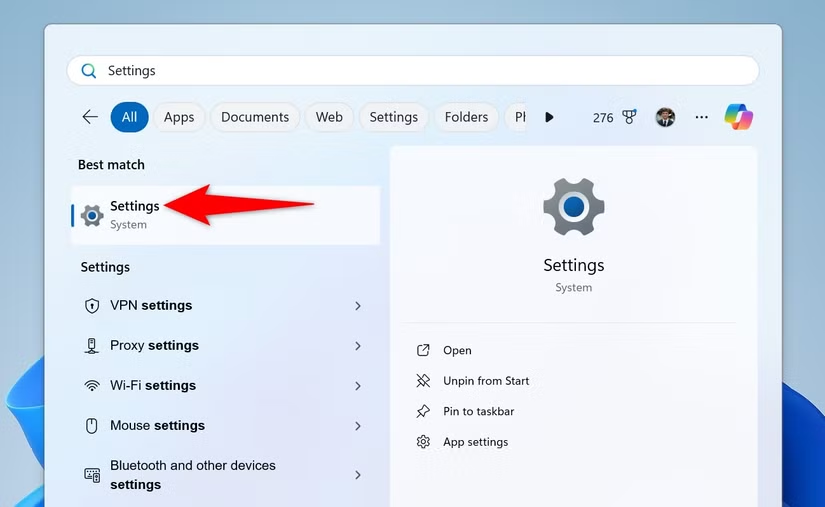
What Just Happened It's called Recall, a feature on new Copilot+ PCs from Microsoft. Recall takes screenshots of your screen every few seconds and creates a searchable history of what you've seen, including websites, chats, and documents. Microsoft says it tries to hide sensitive data like passwords and card numbers, but some security researchers found cases where private information still appeared in saved screenshots. Here's how to check if Recall is turned on and how to disable it if you don't want it tracking your activity.
1. Check If Recall Is On This takes less than 30 seconds. Go to: Settings → Privacy & Security → Recall & Snapshots If you don't see it, you're probably fine. Recall only comes on Copilot+ PCs. If you do see it, open it and check whether "Save snapshots" is turned on. If it's on, Recall is saving screenshots of your activity. The next steps will help you turn it off and limit what it can save.
2. Turn Recall Off Go to: Settings → Privacy & Security → Recall & Snapshots Turn off "Save snapshots." Windows may ask you to confirm with Windows Hello (face, fingerprint, or PIN). That's normal. Once it's off, Recall will stop saving new screenshots of your activity.
3. Delete What It Already Saved Turning Recall off stops new screenshots, but it doesn't delete the old ones. Go to: Settings → Privacy & Security → Recall & Snapshots Then select: Delete snapshots → Delete all → Confirm Before deleting them, take a quick look at the timeline. Seeing a searchable history of your screen activity is usually the moment people realize how much data was being saved.
4. Remove Recall Completely Turning it off stops it from working. Removing it stops it from coming back. Search for: "Turn Windows features on or off" Find "Recall" in the list and uncheck it. Restart your PC. This removes the Recall feature instead of just disabling it.
5. If You Keep Recall, Limit What It Sees If you want to use Recall, at least block it from sensitive apps and sites. Go to: Recall & Snapshots → Filter apps and websites Add your: - Banking apps and websites - Password manager - Email accounts - Medical or health portals Don't rely only on the automatic filter. It's smart, but it's not perfect. Adding important apps and websites manually gives you extra protection.
I hope you've found this thread helpful. Follow me @saidul_dev for more. Like/Repost the quote below if you can: <a target="_blank" href="https://twitter.com/1662704373049483264/status/2069344016731419022" color="blue">x.com/16627043730494…</a>