Your phone isn’t personal. It’s a data sensor with a camera.
In 2026, privacy isn’t a feature. It’s a fight.
If you haven’t audited your device, you’re not the user. You’re the product.
Here’s the 18-step Ghost Protocol to take your phone back.

1. The "Invisible" Listener
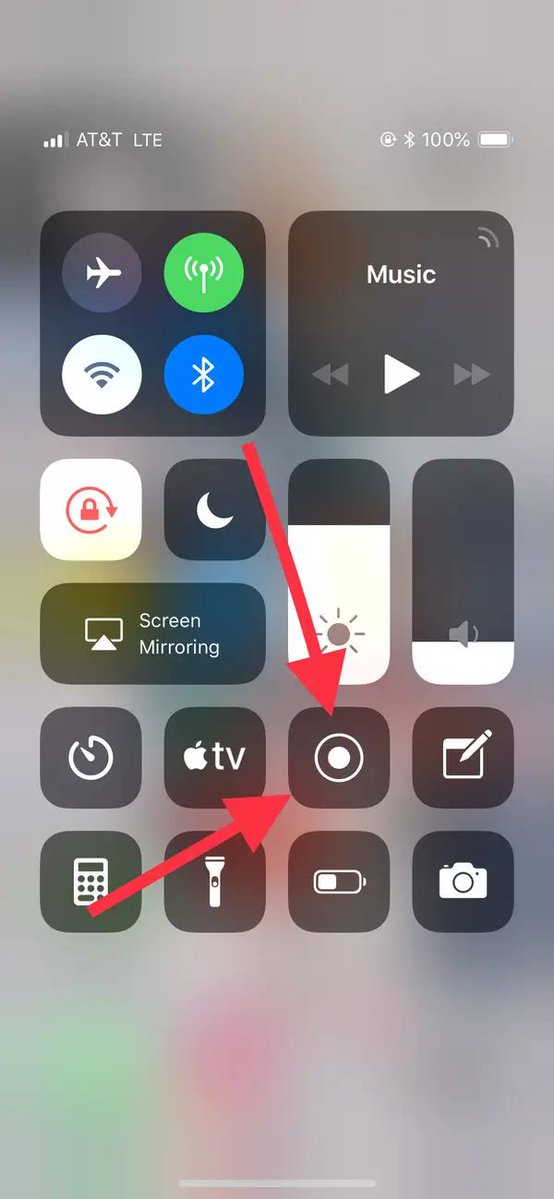
Ever talked about "blue shoes" and seen an ad 5 minutes later? It’s not a coincidence, and they aren't "listening" to your voice. They’re tracking your ultrasonic cross-device pings. Your phone emits sounds you can't hear to talk to your smart TV and laptop. Let's kill that first.
Ever talked about "blue shoes" and seen an ad 5 minutes later? It’s not a coincidence, and they aren't "listening" to your voice. They’re tracking your ultrasonic cross-device pings. Your phone emits sounds you can't hear to talk to your smart TV and laptop. Let's kill that first.
2. Kill the "Significant Locations"
Your iPhone/Android keeps a hidden list of everywhere you go: your gym, your job, your "secret" spots.
- iOS: Settings → Privacy → Location Services → System Services → Significant Locations.
- Action: Clear History and turn it OFF. Stop giving them your routine on a silver platter.
Your iPhone/Android keeps a hidden list of everywhere you go: your gym, your job, your "secret" spots.
- iOS: Settings → Privacy → Location Services → System Services → Significant Locations.
- Action: Clear History and turn it OFF. Stop giving them your routine on a silver platter.
3. The "Name Your Phone" Trick
Is your phone named "John’s iPhone"? Every public Wi-Fi and Bluetooth scanner in a 50ft radius now knows your name. Change it to "System-Error-404" or "Pixel-Null." Don't broadcast your identity to every stranger in the coffee shop.
Is your phone named "John’s iPhone"? Every public Wi-Fi and Bluetooth scanner in a 50ft radius now knows your name. Change it to "System-Error-404" or "Pixel-Null." Don't broadcast your identity to every stranger in the coffee shop.
4. Lockdown the Microphone (The Real Way)
Apps don't need 24/7 access. Go to your Privacy Dashboard and look for "Microphone." If a game, a calculator, or a retail app has access, toggle it off. If an app requires it to function, set it to "Only while using the app."
Apps don't need 24/7 access. Go to your Privacy Dashboard and look for "Microphone." If a game, a calculator, or a retail app has access, toggle it off. If an app requires it to function, set it to "Only while using the app."
5. Scrub your EXIF Data
Every photo you send contains "Metadata": the exact GPS coordinates, the time, and the device used. When you post a "home cooked meal," you're posting your home address to the world. Go to photo settings and Disable Location Metadata before sharing.
Every photo you send contains "Metadata": the exact GPS coordinates, the time, and the device used. When you post a "home cooked meal," you're posting your home address to the world. Go to photo settings and Disable Location Metadata before sharing.
6. The "App Tracking Transparency" Audit
Since 2021, Apple lets you "Ask App Not to Track." But many apps find workarounds through "Fingerprinting." Go to Settings → Privacy → Tracking. Ensure "Allow Apps to Request to Track" is OFF. Global denial is the only way to stay clean.
Since 2021, Apple lets you "Ask App Not to Track." But many apps find workarounds through "Fingerprinting." Go to Settings → Privacy → Tracking. Ensure "Allow Apps to Request to Track" is OFF. Global denial is the only way to stay clean.
7. Reset your Advertising ID
Your "Ad ID" is a digital string that links your behavior across different apps. Think of it as your "Digital Social Security Number" for marketers. Go to Privacy → Advertising → Reset Advertising Identifier. Do this once a month to "confuse" the algorithms.
Your "Ad ID" is a digital string that links your behavior across different apps. Think of it as your "Digital Social Security Number" for marketers. Go to Privacy → Advertising → Reset Advertising Identifier. Do this once a month to "confuse" the algorithms.
8. Use "Private Relay" or a No-Log VPN
Your ISP (Internet Service Provider) sees every site you visit. In many countries, they sell this browsing history legally. Use iCloud Private Relay or a reputable No-Log VPN (Mullvad or Proton). Mask your IP. Encrypt your tunnel.
Your ISP (Internet Service Provider) sees every site you visit. In many countries, they sell this browsing history legally. Use iCloud Private Relay or a reputable No-Log VPN (Mullvad or Proton). Mask your IP. Encrypt your tunnel.
9. The "Background App Refresh" Vampire
Apps "phone home" while you sleep. They send data packets about your battery level, connection, and location. Settings → General → Background App Refresh → OFF. This saves your battery and stops the silent data leaks.
Apps "phone home" while you sleep. They send data packets about your battery level, connection, and location. Settings → General → Background App Refresh → OFF. This saves your battery and stops the silent data leaks.
10. Ditch the "Default" Browser
Safari and Chrome are built by the world's biggest data collectors. Switch to Brave or DuckDuckGo Browser. They block trackers, scripts, and "fingerprinting" by default. It’s like browsing with a shield.
Safari and Chrome are built by the world's biggest data collectors. Switch to Brave or DuckDuckGo Browser. They block trackers, scripts, and "fingerprinting" by default. It’s like browsing with a shield.
11. Purge your "Predictive Text" Dictionary
Your phone learns your slang, your passwords (if you type them), and your secrets to "help" you type faster. This "Learning" file is a goldmine for forensic tools. Settings → General → Transfer or Reset → Reset Keyboard Dictionary. Start fresh.
Your phone learns your slang, your passwords (if you type them), and your secrets to "help" you type faster. This "Learning" file is a goldmine for forensic tools. Settings → General → Transfer or Reset → Reset Keyboard Dictionary. Start fresh.
12. Disable "Raise to Wake"
It seems harmless, but "Raise to Wake" makes it too easy for someone to snatch your phone and keep the screen active. It also accidentally triggers "Attention Awareness" checks. Turn it off. Tap to Wake is safer.
It seems harmless, but "Raise to Wake" makes it too easy for someone to snatch your phone and keep the screen active. It also accidentally triggers "Attention Awareness" checks. Turn it off. Tap to Wake is safer.
13. The "Mail Privacy Protection"
Marketers use "Tracking Pixels" in emails to see when/where you opened them. Settings → Mail → Privacy Protection → Protect Mail Activity. This masks your IP address so they can't build a profile on your reading habits.
Marketers use "Tracking Pixels" in emails to see when/where you opened them. Settings → Mail → Privacy Protection → Protect Mail Activity. This masks your IP address so they can't build a profile on your reading habits.
14. Stop "Auto-Join" Wi-Fi
Your phone is constantly screaming "Is 'Starbucks-Guest' there?" Hackers use "Pineapples" to pretend to be that network. Your phone connects automatically, and they intercept your data. Disable "Auto-Join Hotspots" in Wi-Fi settings.
Your phone is constantly screaming "Is 'Starbucks-Guest' there?" Hackers use "Pineapples" to pretend to be that network. Your phone connects automatically, and they intercept your data. Disable "Auto-Join Hotspots" in Wi-Fi settings.
15. The "Lockdown Mode" (The Nuclear Option)
If you are traveling or feel targeted, enable Lockdown Mode. It’s an extreme level of security that blocks most message attachments, web technologies, and wired connections. It turns your smartphone into a "Dumb-phone" fortress.
If you are traveling or feel targeted, enable Lockdown Mode. It’s an extreme level of security that blocks most message attachments, web technologies, and wired connections. It turns your smartphone into a "Dumb-phone" fortress.
16. Audit your "Backups"
If your phone is encrypted but your Cloud Backup isn't, you're not protected. Ensure Advanced Data Protection (iOS) is on. This enables End-to-End Encryption for your backups. If the cloud provider gets hacked, your data remains scrambled code.
If your phone is encrypted but your Cloud Backup isn't, you're not protected. Ensure Advanced Data Protection (iOS) is on. This enables End-to-End Encryption for your backups. If the cloud provider gets hacked, your data remains scrambled code.
17. The "SIM PIN"
If someone steals your phone, they can put your SIM card into another phone and get your 2FA text codes. Go to Settings → Cellular → SIM PIN. Now, your SIM card is useless without a 4-digit code.
If someone steals your phone, they can put your SIM card into another phone and get your 2FA text codes. Go to Settings → Cellular → SIM PIN. Now, your SIM card is useless without a 4-digit code.
18. The "Monthly Digital Dusting"
Every 30 days, delete 5 apps you haven't used. Less apps = Less "Attack Surface." A clean phone is a fast phone. A fast phone is a secure phone.
Every 30 days, delete 5 apps you haven't used. Less apps = Less "Attack Surface." A clean phone is a fast phone. A fast phone is a secure phone.
The Result:
After 18 steps, you aren't just a "user" anymore. You are a Ghost. The algorithms will struggle to categorize you. Your battery will last 20% longer. Your mind will be at peace.
After 18 steps, you aren't just a "user" anymore. You are a Ghost. The algorithms will struggle to categorize you. Your battery will last 20% longer. Your mind will be at peace.
Generated by Thread Navigator
Press ⌘ + S to quick-export