Gmail has 4 billion+ users.
But only 0.1% can use it effectively.
Here're 10 Gmail hacks that you may not know:
[ Bookmark to use later 🧵 ]


1. Undo that email you just sent.
Here's how to undo it:
→ Setting icon (top right)
→ Settings>General
→ Toggle on ‘undo send’
→ Choose 30 secs
Here's how to undo it:
→ Setting icon (top right)
→ Settings>General
→ Toggle on ‘undo send’
→ Choose 30 secs

VIDEO
2. Get rid of Promotional emails.
→ Type "unsubscribe" in the Gmail search bar.
→ Now select all emails with the unsubscribe tag.
→ Now simply tap on the delete button to delete all.
→ Type "unsubscribe" in the Gmail search bar.
→ Now select all emails with the unsubscribe tag.
→ Now simply tap on the delete button to delete all.

VIDEO
3. Send a confidential email.
You can make your email confidential by disabling the features such as copying, printing, forwarding, and downloading by the recipient.
To enable it, tap on the ‘lock’ symbol while sending a new email.
You can make your email confidential by disabling the features such as copying, printing, forwarding, and downloading by the recipient.
To enable it, tap on the ‘lock’ symbol while sending a new email.

VIDEO
4. Check your Gmail offline.
Follow these simple steps to turn on this offline Gmail mode:
→ Login to your Gmail account.
→ Click on the gear icon or “Quick Settings”.
→ “ See all settings”, click it.
→ Select “Offline”, then select “Enable” for more options.
Follow these simple steps to turn on this offline Gmail mode:
→ Login to your Gmail account.
→ Click on the gear icon or “Quick Settings”.
→ “ See all settings”, click it.
→ Select “Offline”, then select “Enable” for more options.
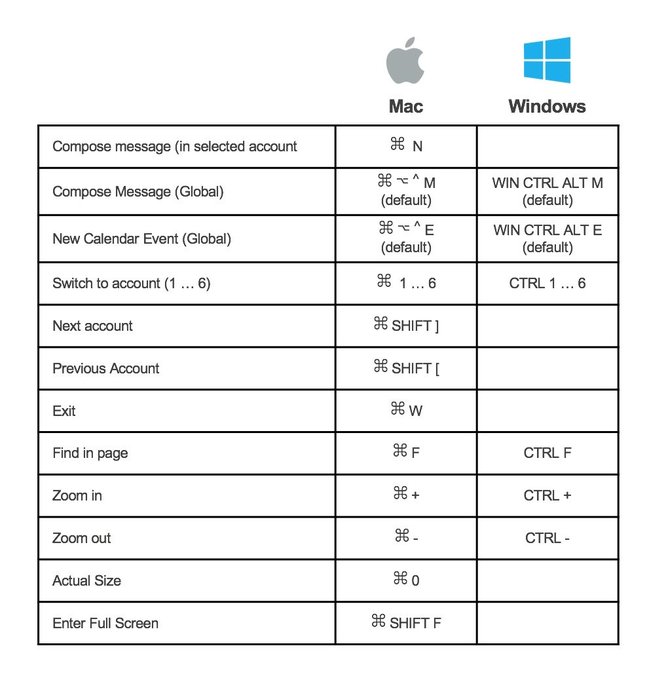
5. Use Gmail with keyboard shortcuts.
✔ Shift + I to mark as read
✔ ⌘ or Ctrl + Enter to send an email
✔ ⌘ or Ctrl + K to insert a link
✔ C to compose
✔ / to search your emails
✔ D to compose in a new tab
✔ Shift + Ctrl + B to add BCC recipients
✔ Shift + I to mark as read
✔ ⌘ or Ctrl + Enter to send an email
✔ ⌘ or Ctrl + K to insert a link
✔ C to compose
✔ / to search your emails
✔ D to compose in a new tab
✔ Shift + Ctrl + B to add BCC recipients

VIDEO
6. Send your email later
Want to make it look like you’re at your desk at 10:00 pm?
you can do exactly that:
→ Click the down arrow next to ‘send’
→ Choose ‘Schedule Send’
→ Pick the date + time you want
Want to make it look like you’re at your desk at 10:00 pm?
you can do exactly that:
→ Click the down arrow next to ‘send’
→ Choose ‘Schedule Send’
→ Pick the date + time you want

VIDEO
7. Snooze an email.
Have an email you don’t want to deal with immediately?
Set a reminder for later.
→ Click on the clock icon on the right
→ Choose how long you want to snooze the email
→ it’ll appear back in your box on that date
Have an email you don’t want to deal with immediately?
Set a reminder for later.
→ Click on the clock icon on the right
→ Choose how long you want to snooze the email
→ it’ll appear back in your box on that date

VIDEO
8. Use labels
Labels can help you organize your emails more effectively.
Create custom labels for different types of emails,
such as “Work,” “Personal,” or “Travel.”
→ simply click on the “Labels” button in the toolbar and select the label
you want to use.
Labels can help you organize your emails more effectively.
Create custom labels for different types of emails,
such as “Work,” “Personal,” or “Travel.”
→ simply click on the “Labels” button in the toolbar and select the label
you want to use.

VIDEO
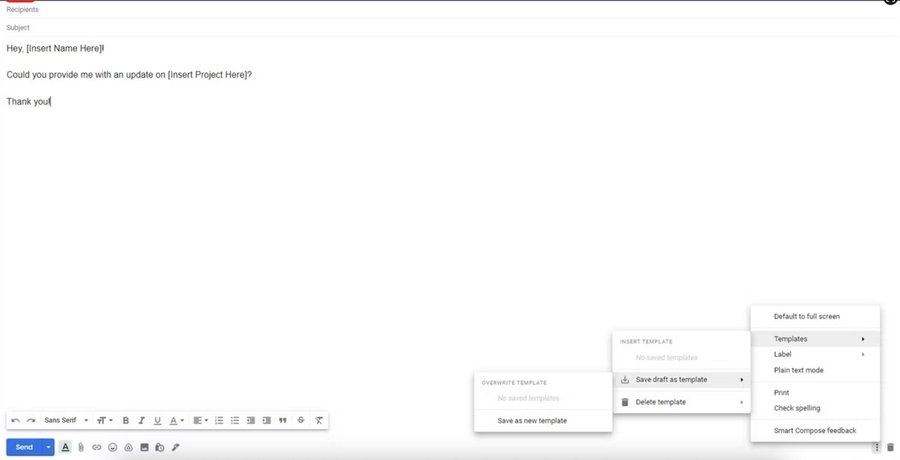
9. Create Templates
Speed the process of creating customized email templates:
→ Select Compose
→ Enter the text you want to use for your template in the email field.
→ Select the three-dot menu and then Templates.
→ Select Save draft as template then Save as new template
Speed the process of creating customized email templates:
→ Select Compose
→ Enter the text you want to use for your template in the email field.
→ Select the three-dot menu and then Templates.
→ Select Save draft as template then Save as new template
10. Archive important emails (don’t delete them!)

VIDEO
That’s it!! :)
If you enjoyed this thread:
- Like and Retweet
- Follow <@hey_madni> for more similar content.
If you enjoyed this thread:
- Like and Retweet
- Follow <@hey_madni> for more similar content.
Generated by Thread Navigator
Press ⌘ + S to quick-export