Here is what many people do when training a model:
1. Transform their dataset
2. Then split it (train, validation, and test sets)
3. Finally, build the model
There's a big problem here. Unfortunately, many make this mistake.
To understand what happens, let's focus on what we do when transforming a dataset.
For example, imagine a tabular dataset where we want to normalize and scale a column.
The column ranges from 1,000 to 10,000, but you want to scale it and squeeze it between 0 and 1. To do this, you want to use min-max scaling.
To apply min-max scaling, you must compute the column's smallest and largest values. But what happens if you do this before splitting the dataset?
If you don't split the dataset first, you'll use all the data to compute the column's min and max values. This includes information from the soon-to-be test set, which you shouldn't be aware of!
We call this "data leakage." You are using information from the test data that will affect your training data.
Here is the correct process:
1. Split the dataset first and set your test set aside
2. Transform the train set
3. Transform the rest of the data
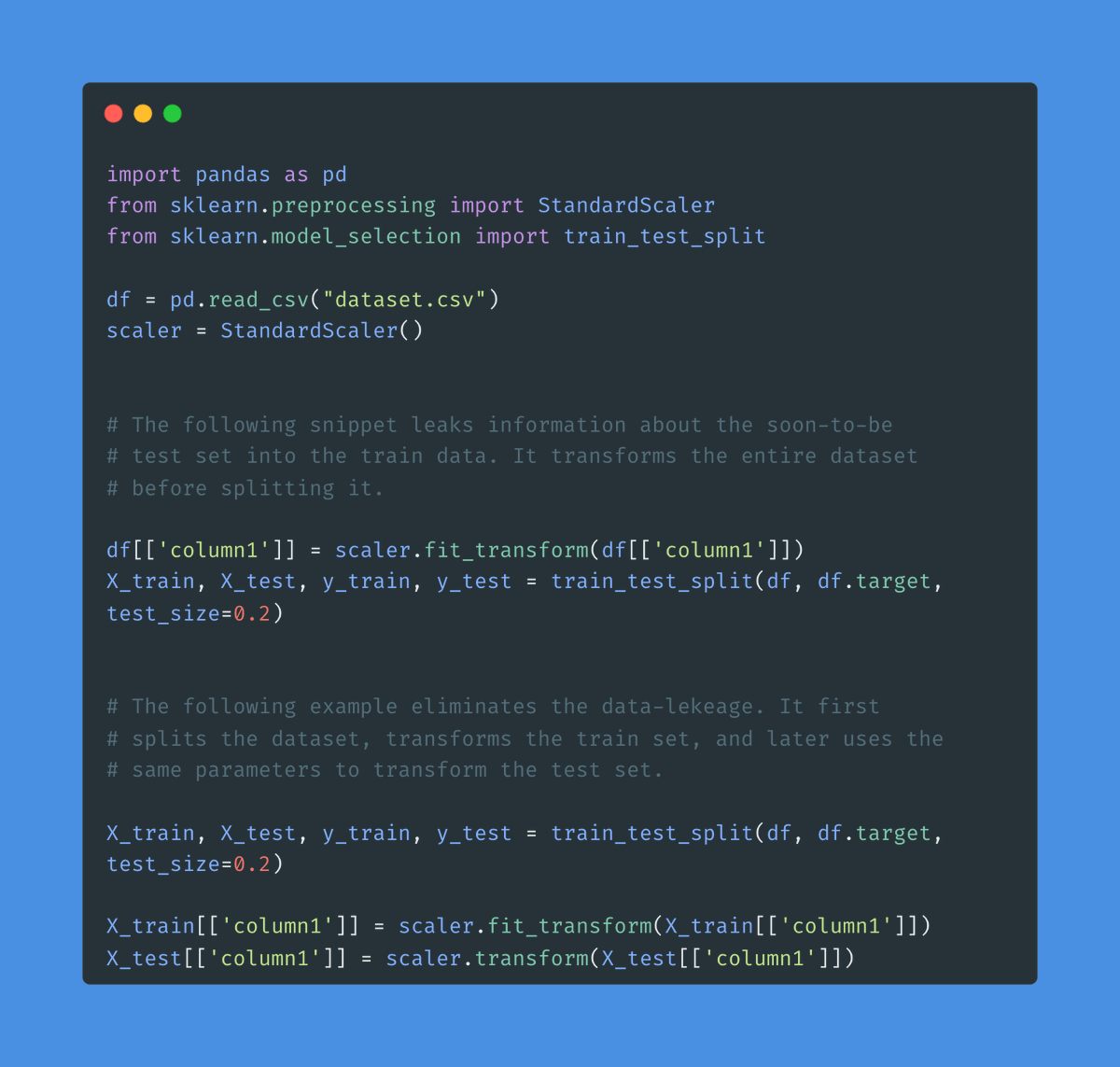
After transforming the train set, you should use the same parameters to change the rest of the data. In the example before, you will use the min and max values calculated on the train set to scale the test samples.
This particular example when scaling one column is not a big deal. But depending on your data, it could be.
Bottom line: Never transform your data before splitting it.
Attached is an example showing the data leakage first and the correct version later.
What other examples of data leakage have you seen?

Generated by Thread Navigator
Press ⌘ + S to quick-export